Forum Replies Created

Viewing 30 posts - 3,991 through 4,020 (of 13,156 total)
  • Avatar: Tony Rodriguez
    Tony Rodriguez
    Support staff
    June 15, 2024 at 05:50

    Hello, @LVRB Love’s Rebel,

    We are pleased to inform you that the issue you reported has been successfully resolved. Our technical team has implemented the necessary CSS code updates to your website.

    You can review the changes by navigating to: Xstore > Theme Options > Theme Custom CSS > Global CSS.

    For your convenience, We have added direct links to the updated pages for your review in private content area.

    Should you require further assistance or have any questions, please do not hesitate to contact us.

    Best regards,
    The 8Theme Team
    Please contact administrator
    for this information.
    Avatar: Tony Rodriguez
    Tony Rodriguez
    Support staff
    June 15, 2024 at 05:12

    Hello, @QaQako,

    You are welcome, we have added the previously provided screenshot in the private content area.

    Choosing our theme reflects your commitment to quality, and for that, we’re genuinely grateful. As we constantly strive to elevate your experience, your feedback is an invaluable gift. Could you kindly take a moment to rate our product with 5 stars on ThemeForest?

    Click here to share your insights: https://themeforest.net/downloads

    Your support fuels our journey, and we appreciate it more than words can express.

    Best Regards,
    The 8Theme Team

    Avatar: Tony Rodriguez
    Tony Rodriguez
    Support staff
    June 14, 2024 at 13:43

    Hello, @QaQako,

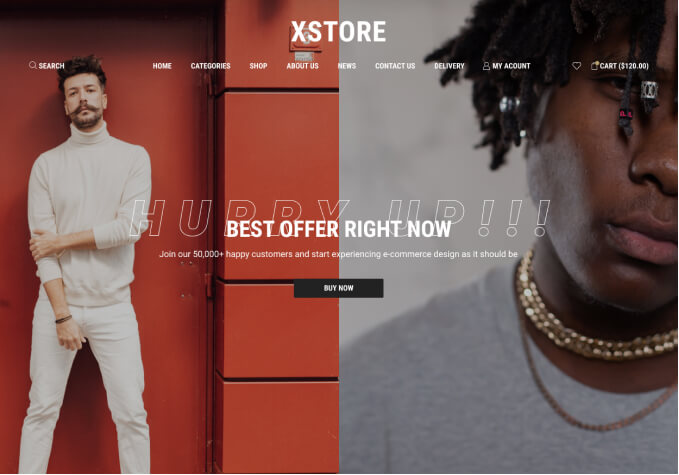
    We are contacting you to advise on the addition of a top panel to your website. We recommend utilizing the Global Sections available in the Theme Options for this purpose.

    Please follow these steps to add the Global Section:
    1. Navigate to Xstore > Theme Options > Global Sections.
    2. Click on “Add the Section.”
    3. Set the Position to “Before Header.”
    4. Select the desired content.
    5. Click “Publish” to save the changes.

    For your reference, we have provided images that illustrate these steps in the private content area.

    We trust this information will be useful to you. Should you require any further assistance or have additional inquiries, please do not hesitate to contact us.

    Best regards,
    The 8Theme Team
    Please contact administrator
    for this information.
    Avatar: Tony Rodriguez
    Tony Rodriguez
    Support staff
    June 14, 2024 at 13:06

    Hello, @Leszek,

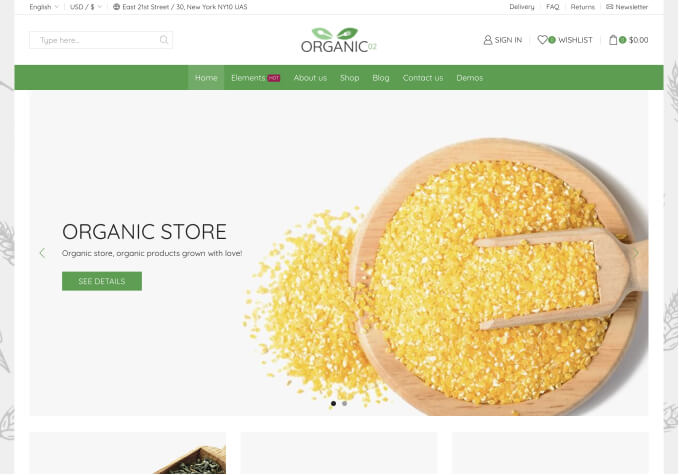
    Upon reviewing your website, we have identified that the issue you are experiencing is related to the use of a third-party plugin for managing Product Types. Specifically, the conflict arises with the “Product with variant” type assigned to your T-Shirt products.

    To address this, we have modified the Product Type for the affected item to “Simple Product.” As a result, the Quantity Discount is now displaying correctly. You can verify this change by visiting the following link: (https://projektowanie.aldrux.pl/product/damska-koszulka-comfort-stedman-kopia-2/).

    We recommend reaching out to the support team of the third-party plugin for further assistance with configuring Product Types to avoid similar issues in the future.

    Should you have any additional questions or require further assistance, please do not hesitate to contact us.

    Best regards,
    The 8Theme Team
    Avatar: Tony Rodriguez
    Tony Rodriguez
    Support staff
    June 14, 2024 at 11:28

    Hello, @Leszek,

    Thank you for your recent purchase of our theme and for reaching out to our support center.

    1. A/ Upon reviewing the functionality of the Quantity Discount Sales Booster, we have confirmed that it operates correctly on our test sites. The issue appears to be isolated to your site. For reference, please review the image we have provided in the private content area: [https://paste.pics/edit/R68GF](https://paste.pics/edit/R68GF).

    B/ We recommend disabling all third-party plugins that are not included with the XStore theme. A list of included plugins can be found here: [https://www.8theme.com/documentation/xstore/plugins/included-plugins/](https://www.8theme.com/documentation/xstore/plugins/included-plugins/). After disabling these plugins, please clear your browser’s cache and check the functionality again. It is possible that one of these additional plugins is causing the issue.

    2/ Regarding your recent inquiry, we find the details provided a bit unclear. Could you please elaborate on your issue with additional details and include a screenshot with specific areas marked for better clarity?

    Furthermore, to assist you more effectively, please provide your site’s WP Admin credentials in the private content area of this topic:

    – WP Admin URL:
    – WP Admin Username:
    – WP Admin Password:

    We appreciate your cooperation and look forward to resolving these issues promptly.

    Best Regards,
    The 8Theme Team

    Please contact administrator
    for this information.
    Avatar: Tony Rodriguez
    Tony Rodriguez
    Support staff
    June 14, 2024 at 11:25

    Hello, @QaQako,

    Thank you for your response.

    Upon reviewing your site there is only one product added to the site. We are unable to see products stuck together in the cart. We recommend you please add more products to the site so we can check the appearance of the product in the cart and provide you with a solution accordingly.

    In addition, we kindly request that you share your site’s wp-admin access credentials in the designated private content area. This will enable us to review your settings in detail and offer the most accurate support.

    Thank you for your cooperation and we look forward to hearing from you soon.

    Best Regards,
    8Theme’s Team

    Please contact administrator
    for this information.
    Avatar: Tony Rodriguez
    Tony Rodriguez
    Support staff
    June 14, 2024 at 11:24

    Hello, @QaQako,

    Thank you for reaching out to us with your concern.

    We are reaching out to provide guidance on how to remove the space between the header and the page on your website. There are two methods you can use to achieve this:

    1. **Using Elementor:**
    – Navigate to your WordPress Dashboard.
    – Go to ‘Pages’ and select the ‘Home Page’.
    – Click on ‘Edit with Elementor’.
    – In the Elementor editor, locate the ‘Containers’ in the ‘Advanced’ tab.
    – Under ‘Layout’, set the ‘Margin Top’ to “0”.

    2. **Using CSS:**
    – Go to ‘Xstore’ > ‘Theme Options’ > ‘Theme Custom CSS’ > ‘Global CSS’.
    – Insert the following CSS code:

         .elementor-element-7696e124, .elementor-element-964b086 {
           margin-top: 0px !important;
         }

    For your reference, you may view the expected outcome in private content area.

    We trust this information will assist you in updating your site. Should you require any further assistance or have additional questions, please feel free to contact us.

    Best Regards,
    The 8Theme Team

    Please contact administrator
    for this information.
    Avatar: Tony Rodriguez
    Tony Rodriguez
    Support staff
    June 14, 2024 at 09:47

    Hello, @QaQako,

    Sure, take your time. Should you require any further assistance, please do not hesitate to reach out. We are here to help you.

    Best Regards,
    The 8Theme Team

    Avatar: Tony Rodriguez
    Tony Rodriguez
    Support staff
    June 14, 2024 at 09:31

    Hello, @QaQako,

    Thank you for contacting us and for using XStore.

    Should you wish to incorporate a prefooter into your website, kindly proceed by navigating through the following path on your dashboard: Dashboard > Appearance > Widgets > Pre Footer. For your convenience, we have attached an image for reference: https://paste.pics/R677U

    Furthermore, we encourage you to review our theme documentation for detailed guidance on this process. You can access the documentation at the following link: (https://www.8theme.com/documentation/xstore/support/widgets-custom-widget-areas/).

    We trust this information will be of assistance to you. Should you have any further inquiries, please do not hesitate to contact us.

    Best Regards,
    The 8Theme Team

    Avatar: Tony Rodriguez
    Tony Rodriguez
    Support staff
    June 14, 2024 at 08:44

    Hello, @Pites,

    Yes, Sure.

    To assist you further with your inquiry, we kindly request that you provide the WP Admin URL and credentials for your copy site. Please ensure that this information is submitted through the private content area of this topic. Additionally, we would appreciate it if you could grant us the necessary permissions to debug your copy site.

    Please provide the following details:
    – WP Admin URL:
    – WP Admin Username:
    – WP Admin Password:

    We thank you for your cooperation and look forward to resolving your issue promptly.

    Best regards,
    The 8Theme Team

    Please contact administrator
    for this information.
    Avatar: Tony Rodriguez
    Tony Rodriguez
    Support staff
    June 14, 2024 at 08:13

    Hello, @LVRB Love’s Rebel,

    Thank you for your response.

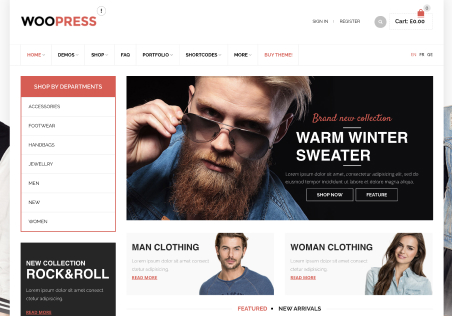
    We are reaching out to provide you with detailed instructions on how to modify the display settings for the Product Gift Card as per your recent request.

    **Hiding Product Images Below Text:**
    To conceal the product images located below the text on the Product Gift Card, as indicated in the screenshot you provided, please insert the following CSS code into your website:

    1. Navigate to Xstore > Theme Options > Theme Custom CSS > Global CSS.
    2. Add the following code:

       [data-id="a025f5c"] {
           display: none !important;
       }

    **Hiding Tabs:**
    To remove the tabs from the Product Gift Card, as shown in your screenshot, please follow these steps:

    1. Go to Xstore > Theme Options > Theme Custom CSS > Global CSS.
    2. Insert the following code:

    ` .gift-cards_form + .woocommerce-tabs {
    display: none !important;
    }

    We trust these steps will effectively address your needs. Should you encounter any difficulties or require further assistance, please do not hesitate to contact us.

    Best regards,
    The 8Theme Team
    Avatar: Tony Rodriguez
    Tony Rodriguez
    Support staff
    June 14, 2024 at 07:28

    Hello, @Allen,

    You are welcome! If you have any additional questions or concerns, please do not hesitate to reach out to us. Our support team is always available to assist you.

    Have a nice day.

    Best regards,
    8Theme’s Team

    Avatar: Tony Rodriguez
    Tony Rodriguez
    Support staff
    June 14, 2024 at 07:23

    Hello, @Pites,

    Thank you for your response.

    1/ We are reaching out to inform you that the WPBakery Text Block Editor is functioning correctly on our test site. It appears that the issue is isolated to your site. For your reference, please view the video we have provided in the private content area:

    To address this, we recommend the following steps:
    1. Please disable all third-party plugins that are not included with XStore. A list of included plugins can be found here: https://www.8theme.com/documentation/xstore/plugins/included-plugins/.
    2. Clear your browser’s cache.
    3. Revisit your site to see if the issue persists.

    2/ Should the problem continue, we kindly ask that you keep all third-party plugins deactivated and allow us permission to debug your site. This process may involve deactivating plugins and any on-site customizations temporarily to diagnose the issue effectively.

    Before proceeding, we strongly advise you to take a complete backup of your site to prevent any potential data loss.

    Furthermore, for us to assist you better, please provide the following details in the private content area of this support thread:
    – WP Admin URL:
    – WP Admin Username:
    – WP Admin Password:

    We appreciate your cooperation and look forward to resolving this matter promptly. Thank you for your attention to this issue.

    Best Regards,
    The 8Theme Team

    Please contact administrator
    for this information.
    Avatar: Tony Rodriguez
    Tony Rodriguez
    Support staff
    June 14, 2024 at 07:02

    Hello, @Allen,

    Thank you for your response.

    To address this effectively, we kindly request your assistance in contacting your hosting provider to discuss increasing the WordPress Memory Limit to 2048MB.

    For detailed guidance on how to proceed with this adjustment, please refer to the following link: [Increase the WordPress Memory Limit](https://uk.godaddy.com/help/increase-the-wordpress-memory-limit-40246).

    We appreciate your prompt attention to this matter and look forward to your cooperation in resolving these critical issues. Should you require any further information or assistance, please do not hesitate to contact us.

    Best regards,
    8Theme’s Team

    Avatar: Tony Rodriguez
    Tony Rodriguez
    Support staff
    June 14, 2024 at 06:57

    Hello, @Carolina,

    Upon reviewing your website, We noticed that you are utilizing the Elementor plugin to manage your site’s layout. To update the logo in your mobile menu, please follow these steps:

    1. Navigate to the mobile header settings and insert the ‘Site Logo’ widget.
    2. Update the logo within this widget to your new desired image and ensure to save the changes.
    3. Once updated, you may remove the ‘Site Logo’ widget if it is no longer needed. This action will retain your updated logo.

    For your reference, We have included a screenshot that illustrates these steps. You can view it by following this link: (https://paste.pics/edit/R65T5)

    Additionally, We would like to inform you that the white border lines appearing around your logo are part of the image file itself. Updating the logo as described above should resolve this issue.

    We trust this information will assist you in updating your site effectively. Should you require further assistance or have any more queries, please do not hesitate to contact us.

    Best Regards,
    The 8Theme Team

    Avatar: Tony Rodriguez
    Tony Rodriguez
    Support staff
    June 14, 2024 at 06:12

    Hello, @Safe Desires,

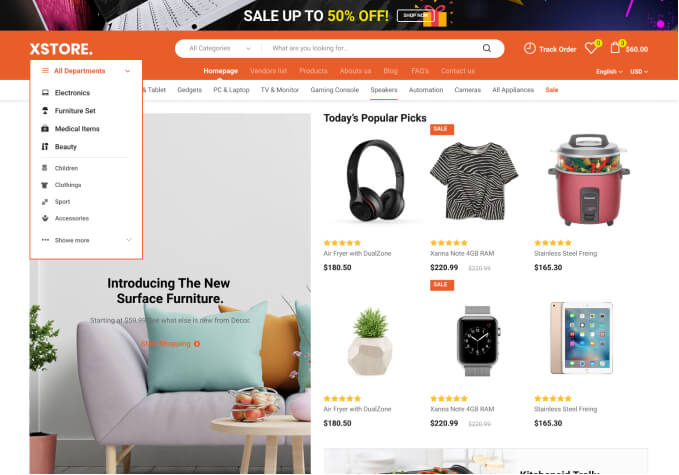
    1/ We are reaching out to guide you through the process of adding variation images to your product listings using the XStore theme.

    To enable the Variation Gallery, please follow these steps:
    1. Navigate to XStore > Theme Options.
    2. Select ‘WooCommerce Shop’ and then ‘Single Product Page’.
    3. Click on ‘Variation Gallery’.
    4. Enable the Variation Gallery option.

    Once enabled, you can proceed to add the variation images under the ‘Variations’ section.

    For your reference, please review the images provided at the following links:
    – [Image 1](https://paste.pics/edit/R65JP)
    – [Image 2](https://paste.pics/edit/R65JQ)

    2/ Please be advised that when the ‘Variation Gallery’ is activated on a product page, the display will be limited to the Variation Image Gallery exclusively. This means that the product video and the standard product gallery will not be displayed concurrently with the Variation Image Gallery.

    This is a default functionality. Changes require additional code customization.

    We trust this information will be helpful to you. Should you need any further assistance or have any questions, please feel free to contact us at any time.

    Best regards,
    The 8Theme Team
    Avatar: Tony Rodriguez
    Tony Rodriguez
    Support staff
    June 14, 2024 at 05:44

    Hello, @Allen,

    Thank you for reaching out to us with your concern. We understand how disruptive these errors can be and we are here to assist you in resolving them as quickly as possible.

    The HTTP ERROR 500 you are encountering indicates that there is a server-side issue with your website. This can be caused by a variety of factors, including but not limited to plugin conflicts, theme issues, or problems with the server configuration.

    To address this, we recommend the following steps:

    1. Check the admin email inbox associated with your website for any instructions or error notifications that may have been sent automatically. These messages can often provide specific information about what is causing the error.

    2. If you have recently installed or updated any plugins or themes, try to recall the last changes you made before the error occurred. If possible, revert those changes by deactivating the plugins or switching to a default theme using FTP or your hosting control panel’s file manager.

    3. Increase the PHP memory limit for your website. Sometimes, a lack of available memory can lead to a critical error. You can do this by editing the wp-config.php file and adding the following line of code:
    define(‘WP_MEMORY_LIMIT’, ‘256M’);

    4. Enable WordPress debugging by adding the following lines to your wp-config.php file:
    define(‘WP_DEBUG’, true);

    define(‘WP_DEBUG_LOG’, true);

    define(‘WP_DEBUG_DISPLAY’, false);

    This will create a debug.log file within the wp-content directory that can provide more detailed information about the error.

    5. Check the server’s error logs through your hosting control panel or by contacting your hosting provider. These logs can offer additional insights into what might be causing the issue.

    6. If you are unable to resolve the issue using the above steps, please provide us with any additional error details you have gathered, and we will further investigate the matter.

    We apologize for any inconvenience this has caused and appreciate your patience as we work to resolve this issue. If you have any further questions or require additional assistance, please do not hesitate to contact us.

    Best Regards,
    8Theme’s Team

    Avatar: Tony Rodriguez
    Tony Rodriguez
    Support staff
    June 14, 2024 at 05:41

    Hello, @bafana57,

    Thank you so much for purchasing our theme and contacting our support center.

    We would like to inform you that the issue you are encountering is a known one and typically indicates that an incorrect archive is being utilized. Please be assured that this is not an issue with the theme itself.

    For your convenience, we have provided detailed instructions on how to address this matter. You can find the necessary steps outlined in the following article: https://www.8theme.com/documentation/xstore/troubleshooting/theme-is-missing-the-style-css-stylesheet-error/

    Should you require any further assistance, please do not hesitate to reach out to us.

    Best Regards,
    The 8Theme Team

    Avatar: Tony Rodriguez
    Tony Rodriguez
    Support staff
    June 14, 2024 at 05:36

    Hello, @LVRB Love’s Rebel,

    We are reaching out to provide you with the necessary steps to hide the tabs and size guide for certain products as per your request.

    **Size Guide:**
    To remove the size guide from the specific product you mentioned in the private content area, please insert the following CSS code in the designated path: Xstore > Theme Options > Theme Custom CSS > Global CSS.

    [data-id="3592"] {
        display: none !important;
    }

    **Tabs:**
    We would like to clarify your request regarding the tabs. Could you please provide us with a screenshot of the tabs you wish to hide? This will help us understand your needs better and enable us to assist you more effectively.

    We appreciate your cooperation and look forward to your response.

    Best regards,
    The 8Theme Team
    Avatar: Tony Rodriguez
    Tony Rodriguez
    Support staff
    June 13, 2024 at 14:02

    Hello, @Abhimanyu,

    1. Upon reviewing your website, we confirm that the “Additional Information Order Note” field is functioning as previously described. When a customer adds a note to their order, it is displayed under “Customer Notes” in the WooCommerce > Orders section.

    2. We are pleased to inform you that we have successfully created and implemented a new badge named “Sale” on your site using the YITH Badge Management Plugin. This badge has been added to the following product: [Minimalist Planter Basket](https://medicalidwatch.com.au/product/minimalist-planter-basket/). Please verify that the badge is displaying correctly on the product page.

    Additionally, you have the capability to create and apply further product badges using the YITH Badge Management Plugin. This feature allows you to enhance product visibility and promotion directly on your website.

    For your reference, please review the images provided in the private content area:

    We hope you find this information useful. Should you need any further assistance or have any questions, please feel free to contact us. We are here to support you.

    Best regards,
    The 8Theme Team

    Please contact administrator
    for this information.
    Avatar: Tony Rodriguez
    Tony Rodriguez
    Support staff
    June 13, 2024 at 12:43

    Hello, @Ishbak,

    Thank you for contacting us and for using XStore.

    We are pleased to assist you with displaying the store notice at the top of your page (Header). Please follow the steps below to add the necessary CSS code:

    1. Navigate to Xstore > Theme Options > Theme Custom CSS > Global CSS.
    2. Insert the following CSS code:

    .woocommerce-store-notice {
      position: absolute !important;
      top: 0 !important;
    }

    You can preview the expected result by visiting this link: (https://paste.pics/edit/R5YCY)

    We hope you find these instructions helpful. Should you require any further assistance or have any questions, please do not hesitate to contact us. We are here to support you.

    Best regards,
    The 8Theme Team

    Avatar: Tony Rodriguez
    Tony Rodriguez
    Support staff
    June 13, 2024 at 12:25

    Hello, @QaQako,

    We are reaching out to provide detailed instructions on how to customize the color and typography of the mini cart items on your website. Please follow the outlined steps below to make the necessary adjustments.

    **1. View Cart Button:**

    To modify the color and typography of the “View Cart” button, please navigate to:
    – Xstore > Theme Options > Styling & Colors > Dark Buttons Section.
    Here, you can change the color and typography according to your preferences.

    For reference, please view the image here: (https://paste.pics/edit/R5XQA)

    **2. Checkout Button:**

    To change the color of the “Checkout” button, please go to:
    – Xstore > Theme Options > Styling & Colors > Active Buttons Section.
    Adjust the color and typography as needed.

    For reference, view the image here: (https://paste.pics/edit/R5XUN)

    **3. SubTotal Label:**

    To customize the color and typography of the “SubTotal” label, add the following CSS code in:
    – Xstore > Theme Options > Theme Custom CSS > Global CSS:

    .cart-widget-subtotal span {
        font-size: 12px !important;
        text-transform: capitalize !important;
        color: green !important;
    }
    
    .cart-widget-subtotal span:hover {
        font-size: 12px !important;
        text-transform: capitalize !important;
        color: red !important;
    }

    You may view the result here: (https://paste.pics/edit/R5Y01)

    **4. Product Names:**

    To change the color of product names on hover, please add the following CSS code in:
    – Xstore > Theme Options > Theme Custom CSS > Global CSS:

    .woocommerce-mini-cart-item .product-title:hover {
        color: red;
    }

    For reference, view the result here: (https://paste.pics/edit/R5Y3S)

    **5. Shopping Cart Word Label:**

    To modify the color and typography of the “Shopping Cart” word label, add the following CSS code in:
    – Xstore > Theme Options > Theme Custom CSS > Global CSS:

    .etheme-elementor-off-canvas_content-head-label {
        font-size: 20px !important;
        text-transform: capitalize !important;
        color: green !important;
    }
    
    .etheme-elementor-off-canvas_content-head-label:hover {
        font-size: 20px !important;
        text-transform: capitalize !important;
        color: white !important;
    }

    You may view the result here: (https://paste.pics/edit/R5Y1W)

    Please note that you can adjust the color and typography as per your requirements by changing the values in the provided code.

    Should you require any further assistance or have any questions, please do not hesitate to reach out. We are here to support you.

    Best Regards,
    8Theme’s Team

    Avatar: Tony Rodriguez
    Tony Rodriguez
    Support staff
    June 13, 2024 at 11:43

    Hello, @diderino,

    Thank you for providing the wp-admin login details.

    We have reviewed the “My Account” page of your site on a mobile device and are pleased to inform you that we found no issues. For your reference, we have attached an image in the private content area of this message.

    We hope this resolves your concerns.

    Should the issue persist, we kindly request that you capture a video demonstrating the problem. Please upload this video to a file-sharing service, such as WeTransfer (https://wetransfer.com/), and share the URL with us. This will aid us in understanding and addressing the issue more effectively.

    Thank you for your cooperation.

    Best Regards,
    8Theme’s Team

    Please contact administrator
    for this information.
    Avatar: Tony Rodriguez
    Tony Rodriguez
    Support staff
    June 13, 2024 at 11:16

    Hello, @diderino,

    Thank you for your prompt response.

    We regret to inform you that we are currently unable to access the backend of your website as the wp-admin login details previously provided are not functioning or are invalid.

    Could you please provide us with updated and valid wp-admin credentials along with the URL of the specific page where the issue is occurring? This will enable us to investigate and assist you in resolving the matter efficiently.

    We kindly recommend that you take a complete backup of your site before proceeding.

    Thank you for your cooperation and we look forward to hearing from you soon.

    Best Regards,
    8Theme’s Team

    Please contact administrator
    for this information.
    Avatar: Tony Rodriguez
    Tony Rodriguez
    Support staff
    June 13, 2024 at 09:40

    Hello, @Abhimanyu,

    Thank you for contacting us and for using XStore.

    1/ Order Notes: Order notes are a built-in feature of WooCommerce, and they are enabled by default. Customers can add notes during the checkout process, and you can also add notes to orders from the WooCommerce admin panel. To ensure that order notes are visible and accessible, you can check the following settings:

    Go to WooCommerce > Settings > Checkout.
    Make sure the “Enable order notes on checkout” option is checked.
    Save changes.

    For Your Reference, Please check out images here: https://paste.pics/edit/R5W0V & https://paste.pics/R5W2Y

    2/ Private Note: we recommend you to use any third-party plugin for this functionality at your own risk.

    Product Badges: To get product badges functionality Please read this detailed article : https://www.8theme.com/documentation/docs/xstore-badges-on-products/
    This will help you how you can setup product badges in products.

    2/ Please read next article : https://www.wpbeginner.com/beginners-guide/speed-wordpress-save-images-optimized-web/

    We hope this helps. Should you require any further assistance, please do not hesitate to reach out. We are here to help you.

    Best Regards,
    8Theme’s Team

    Avatar: Tony Rodriguez
    Tony Rodriguez
    Support staff
    June 13, 2024 at 08:30

    Hello, @jimie,

    Thank you for your response.

    1/ The Kirki Customizer Framework plugin is currently activated on your website and it may conflict with our XStore Core plugin. To ensure seamless functionality and performance, we kindly recommend that you disable the Kirki plugin.

    Please be informed that the XStore Core plugin already encompasses the Kirki framework within its own codebase. To avoid any potential issues, it is advisable to deactivate the Kirki plugin while utilizing XStore.

    2/ Xstore theme required plugin are Elementor and Wp-bakery plugin. Please read our theme documentation here: https://www.8theme.com/documentation/xstore/plugins/included-plugins/

    3/ We suggest that you please temporarily deactivate all 3rd party plugins on your site except the required plugin and check again.

    We hope this helps. Should you require any further assistance, please do not hesitate to reach out. We are here to help you.

    Best Regards,
    8Theme’s Team

    Avatar: Tony Rodriguez
    Tony Rodriguez
    Support staff
    June 13, 2024 at 07:27

    Hello, @jimie,

    Thank you so much for purchasing our theme and contacting our support center.

    Website speed depends on various factors that we do not control. What we can do is share the links that can help you with speed optimization: https://www.8theme.com/documentation/xstore/troubleshooting/how-to-speed-up-my-website/

    Every additional plugin slows down the site a bit, so we would recommend you disable unrequired plugins.

    For further guidance on how to improve your website’s speed, we invite you to review our theme documentation. The following links provide detailed information on this topic:

    1. https://www.8theme.com/documentation/xstore/theme-installation/main-theme-options/
    2. https://www.8theme.com/documentation/xstore/troubleshooting/how-to-improve-wp-rocket-settings-with-xstore/

    For a comprehensive understanding of the specific issues that may be affecting your website’s speed, we suggest conducting a website speed test with Gtmetrix https://gtmetrix.com/ . This tool can provide you with actionable recommendations to further enhance your website’s performance.

    We hope this information is helpful. Should you require any further assistance, please do not hesitate to reach out. We are here to help you.

    Best Regards,
    8Theme’s Team

    Avatar: Tony Rodriguez
    Tony Rodriguez
    Support staff
    June 13, 2024 at 06:41

    Hello, @jhawker81,

    Thank you for contacting us and for using XStore.

    1/ A/ We have conducted a thorough review of the Product Price Widget on our test site and confirmed that it is functioning correctly. It appears that the issue is isolated to your site. For your reference, please review the attached image which provides evidence of the widget’s performance on our test site. https://paste.pics/edit/R5UK9

    B/ To address this, we recommend the following steps:

    We suggest disabling all third-party plugins (including cache plugins) that do not come bundled with XStore (https://www.8theme.com/documentation/xstore/plugins/included-plugins/ ), clearing the cache of the browser, and then checking again. It is possible that one of the additional plugins is causing the issue.

    If the issue still persists, please keep all third-party plugins deactivated on your site and grant permission to debug your site, which includes deactivating all third-party plugins and on-site Customization. This will allow us to investigate and assist you accordingly.

    Please note that you should take a complete backup of your site before proceeding.

    2/ Regarding the display of Breadcrumbs and the product title on mobile and tablet devices, please follow these steps:

    1. Navigate to the Breadcrumbs and Product Title container.
    2. Under the Advanced tab, go to the Responsive Section.
    3. In the Visibility settings, enable “Hide On Desktop” to ensure these elements are displayed only on mobile and tablet devices.

    For your convenience, an illustrative image can be found here: [View Image](https://paste.pics/edit/R5UD4).

    We appreciate your cooperation and look forward to resolving these issues promptly. Should you have any further questions or require additional assistance, please do not hesitate to contact us.

    Best Regards,
    8Theme’s Team

    Avatar: Tony Rodriguez
    Tony Rodriguez
    Support staff
    June 13, 2024 at 06:35

    Hello, @QaQako,

    Thank you so much for purchasing our theme and contacting our support center.

    We are reaching out to provide you with detailed instructions on how to customize the Mini Cart feature in Xstore. Please follow the steps outlined below:

    1. Navigate to Xstore > Xstore Builders.
    2. Select ‘Header’ and edit the current active header using Elementor.
    3. Within Elementor, go to the Shopping Cart Widget and click on the “Content Tab.”
    4. Proceed to the “Off Canvas/DropDown Section” where you can customize the Mini Cart.
    5. After making the desired changes, click “Update” to save the modifications.

    For your reference, an image has been provided in the private content area.

    We trust this information will be of assistance to you. Should you require any further support, please do not hesitate to contact us. We are committed to ensuring your experience with our products is both productive and enjoyable.

    Best regards,
    The 8Theme Team

    Please contact administrator
    for this information.
    Avatar: Tony Rodriguez
    Tony Rodriguez
    Support staff
    June 13, 2024 at 05:40

    Hello, @Carolina,

    Thank you for contacting us and for using XStore.

    We are reaching out to provide guidance on updating the background color of the logo container within your website’s theme settings.

    Please follow the steps below to add the necessary CSS code:

    1. Navigate to Xstore > Theme Options > Theme Custom CSS > Global CSS.
    2. Insert the following CSS code:

    @media only screen and (max-width: 600px) {
        .etheme-elementor-mobile-menu-logo {
            background: green !important;
        }
    }

    **Note:** After applying the CSS code, it will be effective for both containers of logos. You may customize the background color by altering the value in the background property.

    To view the expected result, please visit this link: [View Sample](https://paste.pics/edit/R5U72)

    We hope this information is helpful to you. Should you require further assistance or have any questions, please feel free to contact us. We are here to support you.

    Best Regards,
    8Theme’s Team

  • 1 2 3 133 134 135 437 438 439
    Viewing 4,020 results - 3,991 through 4,020 (of 13,156 total)
Viewing 30 posts - 3,991 through 4,020 (of 13,156 total)
We're using our own and third-party cookies to improve your experience and our website. Keep on browsing to accept our cookie policy.