Forum Replies Created

Viewing 30 posts - 1,561 through 1,590 (of 13,136 total)
  • Avatar: Tony Rodriguez
    Tony Rodriguez
    Support staff
    January 6, 2025 at 05:28

    Hello, @Tarique,

    Thank you for your response.

    We are pleased to inform you that your issue has been resolved. Kindly clear your browser cache and revisit your site to review the updates.

    Specifically, we have made adjustments to the single product page layout. These changes were implemented via **XStore Builders > Single Product Builder** using Elementor. We have added the **Waitlist** and **Product Stock** widgets and updated the layout accordingly.

    For your reference, we have provided images in the private content area to illustrate the changes.

    Should you have any further questions or require additional assistance, please do not hesitate to reach out.

    Best regards,
    The 8Theme Team
    Please contact administrator
    for this information.
    Avatar: Tony Rodriguez
    Tony Rodriguez
    Support staff
    January 6, 2025 at 05:09

    Hello, @Hassam,

    Thank you for your response. We kindly request further clarification regarding your inquiry, as it is currently a bit unclear to us. Could you please provide more detailed information about your specific requirements or desired goals? This will enable us to better understand your needs and assist you accordingly.

    We look forward to your response.

    Best regards,
    The 8Theme Team

    Avatar: Tony Rodriguez
    Tony Rodriguez
    Support staff
    January 4, 2025 at 14:05

    Hello, @Boddicker,

    Thank you for reaching out to us. Could you kindly provide a detailed description of your specific needs or desired goals? This will allow us to thoroughly review your requirements and assist you more effectively.

    We look forward to your response.

    Best regards,
    The 8Theme Team

    Avatar: Tony Rodriguez
    Tony Rodriguez
    Support staff
    January 4, 2025 at 13:09

    Hello, @Den,

    Thank you so much for purchasing our theme and contacting our support center.

    To address the issue you are experiencing, we kindly request you to follow the steps below:

    1. Navigate to **XStore Builders** > **Product Archive Builder**.
    2. Select **Edit Archive Template**.
    3. Locate and edit the **Archive Products Widget**.
    4. Go to the **Content** tab > **Product** section.
    5. Enable the **Show Excerpt** option by turning it ON.
    6. Save and update the changes.

    For your convenience, we have provided reference images in the private content area to guide you through the process.

    We hope this resolves your concern. Should you require further assistance, please do not hesitate to reach out.

    Best regards,
    The 8Theme Team

    Please contact administrator
    for this information.
    Avatar: Tony Rodriguez
    Tony Rodriguez
    Support staff
    January 4, 2025 at 12:58

    Hello, @likith,

    Thank you for contacting us and for using XStore.

    1/ We kindly request that you consult the official documentation provided by Elementor to address this issue. You can find the relevant guide by following this link: (https://elementor.com/help/elementor-widget-panel-not-loading/). This guide outlines the necessary steps to resolve the problem with the widget panel not loading.

    We trust that you will find this resource valuable and that it will effectively assist you in troubleshooting the issue.

    2/ Please Check System Requirements:

    Ensure that your web hosting environment meets the minimum requirements for the XStore theme. Please increase the memory limit as (512M) and max execution time 300 & max input vars minimum 4000 -Check the image for specific requirements here: https://ibb.co/tZwzJSv
    We kindly request that you, Please use PHP version 8.0, 8.1 or 8.2

    For this please contact your service provider and ask them to fix it.

    After that, Please clear your browser cache, server cache, or any cache mechanism and recheck again.

    3/ We suggest disabling all third-party plugins (including cache plugins and CDN ) that do not come bundled with XStore (https://xstore.helpscoutdocs.com/article/36-included-plugins ), clearing the cache of the browser, and then checking again. It is possible that one of the additional plugins is causing the issue.

    We hope this helps. Should you require any further assistance, please do not hesitate to reach out. We are here to help you.

    Best Regards,
    8Theme’s Team

    Avatar: Tony Rodriguez
    Tony Rodriguez
    Support staff
    January 4, 2025 at 12:53

    Hello, @Juergen,

    Kindly check the private content area.

    Best regards,
    The 8Theme Team

    Please contact administrator
    for this information.
    Avatar: Tony Rodriguez
    Tony Rodriguez
    Support staff
    January 4, 2025 at 12:50

    Hello, @Jae,

    Thank you for providing us with access to your WordPress admin panel.

    We are pleased to inform you that the issue has been successfully resolved. Kindly check your website after clearing your browser cache to ensure the changes are reflected properly.

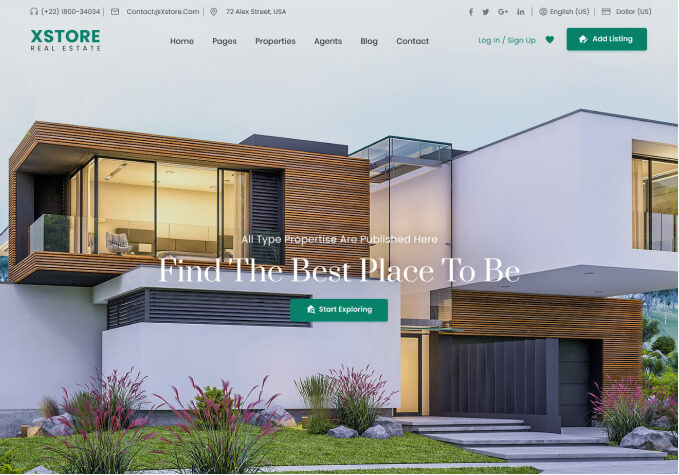
    To address the issue, we made edits to the slider and removed the YouTube video layer, which resolved the problem. For your reference, we have included an image in the private content area.

    Should you have any further questions or require additional assistance, please do not hesitate to reach out.

    Best regards,
    The 8Theme Team
    Please contact administrator
    for this information.
    Avatar: Tony Rodriguez
    Tony Rodriguez
    Support staff
    January 4, 2025 at 12:12

    Hello, @Juergen,

    Thank you for your response.

    To assist you with importing the specific single product page template, we have prepared a detailed video tutorial for your convenience. Kindly watch the video and follow the steps demonstrated.

    Please note that the video is available in the private content area.

    We hope you find this helpful. Should you have any further questions or require additional assistance, please do not hesitate to reach out to us.

    Best regards,
    The 8Theme Team

    Please contact administrator
    for this information.
    Avatar: Tony Rodriguez
    Tony Rodriguez
    Support staff
    January 4, 2025 at 09:53

    Hello, @Jae,

    Thank you so much for purchasing our theme and contacting our support center.

    We regret to inform you that we are currently unable to review your website as it appears to be in maintenance mode. To assist you further, we kindly request that you provide us with access to your website’s WordPress admin panel. You may share the login credentials securely in the private content area.

    Once we have access, we will be able to thoroughly review your settings and provide the necessary support.

    Thank you for your understanding and cooperation.

    Best regards,
    The 8Theme Team

    Please contact administrator
    for this information.
    Avatar: Tony Rodriguez
    Tony Rodriguez
    Support staff
    January 4, 2025 at 07:05

    Hello, @Crispy123,

    Thank you for contacting us and for using XStore.

    1. To adjust the position of placeholders on the checkout page, please follow these steps:
    – Navigate to **XStore Builders > Checkout Page Builder via Elementor**.
    – Select **Edit Checkout Page (Default)**.
    – Locate the **Advanced Label Option** and toggle it ON or OFF based on your preference.
    – Save and update the changes.

    2. To modify the overall background color of the checkout page:
    – Go to **XStore Builders > Checkout Page Builder via Elementor**.
    – Select **Edit Checkout Page (Default)**.
    – Navigate to **Advanced > Background**.
    – Choose your desired color and save the changes.

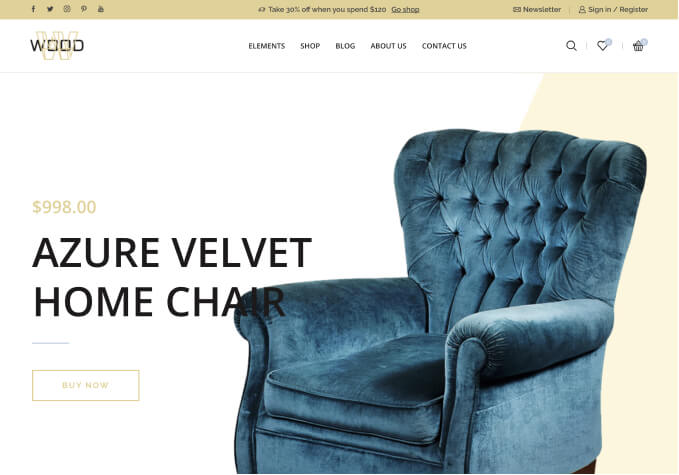
    For your convenience, we have included reference images in the private content area to guide you through the process.

    We hope this information is helpful. Should you have any further questions or require additional assistance, please do not hesitate to reach out.

    Best regards,
    The 8Theme Team
    Please contact administrator
    for this information.
    Avatar: Tony Rodriguez
    Tony Rodriguez
    Support staff
    January 4, 2025 at 06:38

    Hello, @Anurag,

    Thank you for reaching out to us with your concern regarding the product image size on your website. We understand how important it is for the images to appear clear and properly aligned to ensure a great visual experience for your users.

    Please read the next articles – https://www.8theme.com/documentation/xstore/woocommerce/product-images/ https://docs.woocommerce.com/document/fixing-blurry-product-images/
    The size of products comes not from our theme, but from WooCommerce settings in Appearance > Customizer > WooCommerce > Product Images. From your screenshot, it looks like the images are cropped.

    Please note that once you change these settings you need to regenerate thumbnails using the appropriate plugin.

    Regenerate Thumbnails: After changing the image size, install and run the Regenerate Thumbnails plugin to ensure all images are resized correctly. This will help remove the blurriness caused by mismatched image dimensions.

    It is recommended to use a graphics editor and prepare product images (make them the same size) before uploading images to your media gallery and for products. In other cases, images may have different heights on the frontend.

    We hope this helps. Further assistance you can get from the WooCommerce support team – https://wordpress.org/support/plugin/woocommerce/

    Best Regards,
    8Theme’s Team

    Avatar: Tony Rodriguez
    Tony Rodriguez
    Support staff
    January 4, 2025 at 06:28

    Hello, @Boddicker,

    Thank you for contacting us and for using XStore.

    We kindly request you to clear your browser cache and check again.

    We hope this resolves the issue. Should you need further assistance, please do not hesitate to reach out.

    Best regards,
    The 8Theme Team

    Please contact administrator
    for this information.
    Avatar: Tony Rodriguez
    Tony Rodriguez
    Support staff
    January 4, 2025 at 06:09

    Hello, @Boddicker,

    Thank you for contacting us and for using XStore.

    After thoroughly reviewing your website, we did not identify any issues on our end. It appears that the problem may be related to a cache issue on your browser. We kindly request that you clear your browser cache and check the website again.

    To assist you further, we have recorded a video for your reference. You can access the video in the private content area.

    Should you have any additional questions or require further assistance, please do not hesitate to reach out.

    Best regards,
    The 8Theme Team

    Please contact administrator
    for this information.
    Avatar: Tony Rodriguez
    Tony Rodriguez
    Support staff
    January 4, 2025 at 05:47

    Hello, mutta,

    Thank you for reaching out to us with your concern regarding the product image size on your website. We understand how important it is for the images to appear clear and properly aligned to ensure a great visual experience for your users.

    Please read the next articles – https://www.8theme.com/documentation/xstore/woocommerce/product-images/

    The size of products comes not from our theme, but from WooCommerce settings in Appearance > Customizer > WooCommerce > Product Images.

    Please note that once you change these settings you need to regenerate thumbnails using the appropriate plugin.

    Regenerate Thumbnails: After changing the image size, install and run the Regenerate Thumbnails plugin to ensure all images are resized correctly. This will help remove the blurriness caused by mismatched image dimensions.

    It is recommended to use a graphics editor and prepare product images (make them the same size) before uploading images to your media gallery and for products. In other cases, images may have different heights on the frontend.

    We hope this helps. Further assistance you can get from the WooCommerce support team – https://wordpress.org/support/plugin/woocommerce/

    Best Regards,
    8Theme’s Team

    Avatar: Tony Rodriguez
    Tony Rodriguez
    Support staff
    January 4, 2025 at 05:33

    Hello, @ziogoogle,

    Thank you for your response.

    We regret to inform you that, at this time, the ‘Include/Exclude URLs’ feature is not available within the XStore Maintenance Mode settings.

    Please post your request on our Taskboard at https://www.8theme.com/taskboard/ -If it receives enough votes from other customers, our development team will consider adding it in one of the upcoming updates.

    However, you may consider utilizing a third-party plugin to achieve the desired functionality. Please note that the use of such plugins would be at your own discretion and risk.

    Should you have any further questions or require assistance, please do not hesitate to contact us.

    Best regards,
    The 8Theme Team

    Avatar: Tony Rodriguez
    Tony Rodriguez
    Support staff
    January 4, 2025 at 05:13

    Hello, @Aya Mohamed,

    Thank you for providing the video of the problem.

    Please provide us with FTP access in the private content area.
    For FTP access, we require the following details: FTP host, FTP username, FTP password, FTP port, and FTP encryption type. If you need assistance in creating these credentials, please reach out to your hosting provider who will guide you through the process.

    Thank you for your cooperation and we look forward to hearing from you soon.

    Best Regards,
    8Theme’s Team

    Avatar: Tony Rodriguez
    Tony Rodriguez
    Support staff
    January 3, 2025 at 13:00

    Hello, @ziogoogle,

    Thank you for contacting us and for using XStore.

    1/ My account page is the default WooCommerce page and all the settings available for this you can find in WooCommerce > Settings > Account. If you want to add any extra fields you need to look for the third-party plugins that allow editing of the WooCommerce login/registration forms because our theme does not have such options.

    WooCommerce does not have a lot of options to customize the registration form. Read this post https://quadlayers.com/customize-woocommerce-registration-form/

    2/ A/1/ Please set your site visibility settings, please navigate to WooCommerce > Settings > Site Visibility > select Live and save settings.

    A/ 2/ Afterwards, To display an “Under Construction” or “Maintenance Mode” page while your website is being updated, and to ensure that only administrators have access to the site, you can follow these steps:

    1) To activate the maintenance mode on the site please follow the steps:
    Navigate to XStore > Maintenance Mode > On. https://imgur.com/a/0uQNppf

    You may create the maintenance page from scratch at Dashboard – Pages – Add new. Choose “Maintenance” in the “Template” list of “Page attributes”. Or you can import the page from our demo in XStore Control Panel -> Import demos -> Coming Soon demos.
    We hope this information is helpful.

    2/ Please check your site in logout mode. Maintenance mode allows you to display a user-friendly notice to your visitors instead of a broken site during website maintenance. Build a sleek maintenance page that will be shown to your site visitors. Only registered users with sufficient privileges can view the front end. Switch it off when you’re ready to relaunch the site.

    We would like to inform you that by toggling the Maintenance Mode button, you will enable the under-construction page on your website.

    Should you not currently possess a maintenance page, you can easily create one by following these steps:

    1. Navigate to your Dashboard.
    2. Proceed to Pages and select ‘Add New’.
    3. Under ‘Page Attributes’, locate the ‘Template’ dropdown menu and select ‘Maintenance’.

    For further customization using Elementor, please adjust the page layout settings by choosing the “Maintenance Page” option.

    For your convenience, a visual guide is available at the following link:
    https://ibb.co/RN2h5Mz
    https://imgur.com/a/CldYq4i

    Alternatively, if you prefer to use a pre-designed template, you have the option to import a page from our demo content. This can be done through the XStore Control Panel by selecting ‘Import Demos’ and then choosing from the ‘Coming Soon’ demos.

    A visual reference for this process can be found here: https://imgur.com/a/VCYyz7c

    We hope this helps. Should you require any further assistance, please do not hesitate to reach out. We are here to help you.

    Warm regards,
    The 8Theme Team

    Avatar: Tony Rodriguez
    Tony Rodriguez
    Support staff
    January 3, 2025 at 12:54

    Hello, @Rokas,

    Thank you so much for purchasing our theme and contacting our support center.

    Kindly navigate to XStore > Theme Options > Speed Optimization > Always load “wc-cart-fragments” > Off. Clear cache and check the result.

    We hope this helps. Should you require any further assistance, please do not hesitate to reach out. We are here to help you.

    Best Regards,
    8Theme’s Team

    Avatar: Tony Rodriguez
    Tony Rodriguez
    Support staff
    January 3, 2025 at 12:23
    Avatar: Tony Rodriguez
    Tony Rodriguez
    Support staff
    January 3, 2025 at 12:22

    Hello, @Mirko,

    Thank you for contacting us and for using XStore.

    To increase the memory limit and file upload size, we kindly recommend contacting your hosting service provider. They will be able to assist you in adjusting these settings to meet your requirements.

    We hope this information is helpful. Should you have any further questions, please do not hesitate to contact us.

    Best regards,
    The 8Theme Team

    Avatar: Tony Rodriguez
    Tony Rodriguez
    Support staff
    January 3, 2025 at 09:50

    Hello, @Nirmalya,

    Thank you for contacting us and for using XStore.

    To modify the font of the “All Department” menu, please follow the steps below:

    1. Navigate to **XStore Builders > Header Builder** via Elementor.
    2. Select **Edit Header**.
    3. Click on **Edit Department Menu**.
    4. Go to the **Style** tab.
    5. Under **Dropdown Items**, choose **Edit Typography**.
    6. Select the desired font family as per your requirements.
    7. Save and update the changes.

    For your convenience, we have provided an image reference in the private content area.

    We hope this information is helpful. Should you have any further questions or require additional assistance, please do not hesitate to reach out.

    Best regards,
    The 8Theme Team

    Please contact administrator
    for this information.
    Avatar: Tony Rodriguez
    Tony Rodriguez
    Support staff
    January 3, 2025 at 09:26

    Hello, @Hassam,

    Thank you for contacting us and for using XStore.

    To create a page displaying on-sale products, please follow the steps below:

    1. Navigate to your WordPress Dashboard.
    2. Go to **Pages** > **Add New Page**.
    3. Add the **Product Grid Widget** to the page.
    4. Set the **Data Source** to “On Sale Products.”

    This configuration will ensure that only products with sale prices are displayed on the page.

    For your reference, we have included an image in the private content area to guide you through the process.

    Should you have any further questions or require assistance, please do not hesitate to reach out.

    Best regards,
    The 8Theme Team

    Please contact administrator
    for this information.
    Avatar: Tony Rodriguez
    Tony Rodriguez
    Support staff
    January 3, 2025 at 08:06
    Avatar: Tony Rodriguez
    Tony Rodriguez
    Support staff
    January 3, 2025 at 08:05

    Hello, @Khan Arif,

    Thank you for contacting us and for using XStore.

    We are pleased to inform you that the issue you reported has been resolved. Kindly check your website after clearing your browser cache to ensure everything is functioning as expected.

    We’ve used this code to disable the cache of Categories Filter Widget:

    add_filter('woocommerce_layered_nav_count_maybe_cache', '__return_false');
    add_filter('etheme_widget_product_categories_cache', '__return_false');

    Should you encounter any further issues or have additional queries, feel free to contact us.

    Best regards,
    The 8Theme Team

    Please contact administrator
    for this information.
    Avatar: Tony Rodriguez
    Tony Rodriguez
    Support staff
    January 3, 2025 at 07:27

    Hello, @joebuston,

    Thank you for contacting us and for using XStore.

    We are pleased to inform you that the issue you reported has been resolved. Kindly check your website after clearing your browser cache to ensure everything is functioning as expected.

    As part of the resolution, we have deactivated the Redis Object Cache plugin on your website, which successfully addressed the issue.

    For optimal performance and to avoid potential conflicts, we recommend using only one caching plugin (Wp-Rocket) on your website at a time. Running multiple caching plugins simultaneously can lead to compatibility issues, as was the case here.

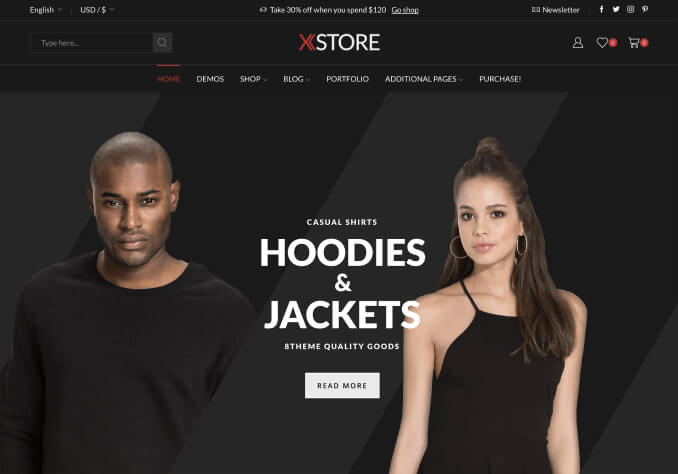
    For your reference, we have included an image in the private content area.

    Should you have any further questions or require additional assistance, please do not hesitate to reach out.

    Best regards,
    The 8Theme Team
    Please contact administrator
    for this information.
    Avatar: Tony Rodriguez
    Tony Rodriguez
    Support staff
    January 3, 2025 at 07:10

    Hello, @Juergen,

    Thank you for contacting us and for using XStore.

    Kindly refer to our theme documentation for detailed guidance on this topic: https://www.8theme.com/documentation/xstore/xstore-features/advanced-reviews-elevate-your-customer-feedback-game-with-xstore/

    If the issue persists, we kindly request you to provide the URL of the product page where the product review has been added but is not appearing on the front end. Additionally, please share your site’s WordPress admin access in the private content area so that we can thoroughly review your settings and assist you further.

    Thank you for your cooperation.

    Best regards,
    The 8Theme Team

    Please contact administrator
    for this information.
    Avatar: Tony Rodriguez
    Tony Rodriguez
    Support staff
    January 3, 2025 at 06:21

    Hello, @ziogoogle,

    Thank you for providing us with access to your WordPress admin panel.

    We are pleased to inform you that the issue has been successfully resolved. Kindly check your website after clearing your browser cache to ensure the changes are reflected properly.

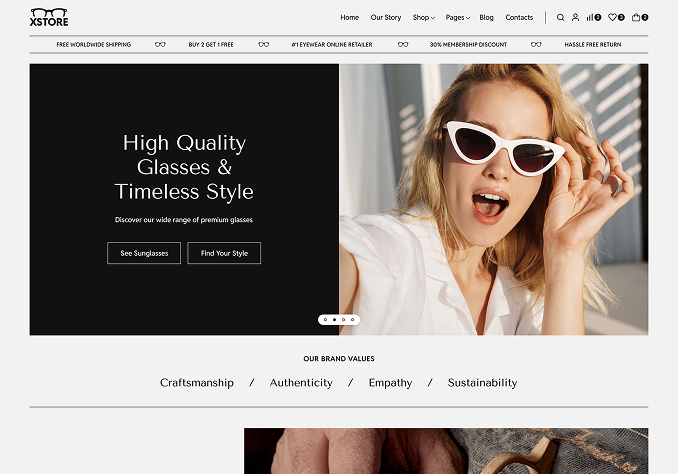
    To address the issue, we made modifications to the header using the Header Builder in XStore via Elementor. This adjustment has resolved the problem.

    For your reference, we have included images in the private content area to illustrate the changes made.

    Should you have any further questions or require additional assistance, please do not hesitate to reach out.

    Best regards,
    The 8Theme Team
    Please contact administrator
    for this information.
    Avatar: Tony Rodriguez
    Tony Rodriguez
    Support staff
    January 3, 2025 at 05:52

    Hello, @Aya Mohamed,

    Thank you for your response.

    We have thoroughly reviewed your website and found no issues. The XStore theme is active on your site and appears to be functioning as expected. Additionally, when attempting to use an email address that is already registered, a message correctly appears indicating that the email is in use.

    We kindly recommend clearing your browser cache and checking again to ensure everything works smoothly on your end.

    For your convenience, we have recorded a video demonstration to provide further clarity. You can find the video link in the private content area.

    We hope this information is helpful. Should you have any further questions or require additional assistance, please do not hesitate to contact us.

    Best regards,
    The 8Theme Team

    Please contact administrator
    for this information.
    Avatar: Tony Rodriguez
    Tony Rodriguez
    Support staff
    January 3, 2025 at 05:42

    Hello, @Tarique,

    Thank you for your response.

    If you would like to add the Fox Currency Switcher widget as a dropdown list in the header, please follow the steps below:

    1. Navigate to **XStore Builders** > **Edit Header**.
    2. Open the header section using Elementor.
    3. Add a **Shortcode Widget** to the desired location in the header.
    4. Enter the following shortcode: [woocs]
    5. Save and update your changes.

    FOX is woo currency tool and available as shortcode [woocs] so as the widget.

    For your reference, we have included images in the private content area to guide you through the process. Additionally, you may find the following article helpful: https://currency-switcher.com/shortcode/woocs/#google_vignette

    We hope this information is helpful. Should you have any further questions or require assistance, please do not hesitate to reach out.

    Best regards,
    The 8Theme Team
    Please contact administrator
    for this information.
    Avatar: Tony Rodriguez
    Tony Rodriguez
    Support staff
    January 2, 2025 at 14:14

    Hello, PragaCom,

    Thank you for reaching out to us with your inquiry. We understand that you are looking for guidance on how to modify the reference text and would like to change the “Free Shipping Over $49” setting.

    Please navigate to XStore > Theme Options > Header Builder > Cart > Mini-Cart Promo Message > edit content of Text tab.

    If you encounter any difficulties or have further questions, please do not hesitate to contact us. We are here to help!

    Best Regards,
    8Theme’s Team

  • 1 2 3 52 53 54 436 437 438
    Viewing 1,590 results - 1,561 through 1,590 (of 13,136 total)
Viewing 30 posts - 1,561 through 1,590 (of 13,136 total)
We're using our own and third-party cookies to improve your experience and our website. Keep on browsing to accept our cookie policy.