Translations - by Daumantas Nazarenko - on WordPress WooCommerce support

This topic has 9 replies, 4 voices, and was last updated 4 years, 9 months ago ago by Daumantas Nazarenko

  • Avatar: Daumantas_Nazarenko
    Daumantas Nazarenko
    Participant
    February 13, 2021 at 05:05

    Hello, I wasn’t able to find where I could do theme translations for these places that you can further see in the screenshots. Would you please guide me on where I could do translations for these particular words on those pages?

    https://balaganas.lt/
    http://prntscr.com/zaj8bh

    https://balaganas.lt/en/home/
    http://prntscr.com/zajlyn
    http://prntscr.com/zajpf9

    https://balaganas.lt/en/produkcija/
    http://prntscr.com/zajw2o

    Thanks

    Please, contact administrator
    for this information.
    8 Answers
    Avatar: Robert Hall
    Robert Hall
    Participant
    February 13, 2021 at 11:24

    Hi

    Thanks for contacting us.

    https://docs.woocommerce.com/document/woocommerce-localization/ – please follow this article.

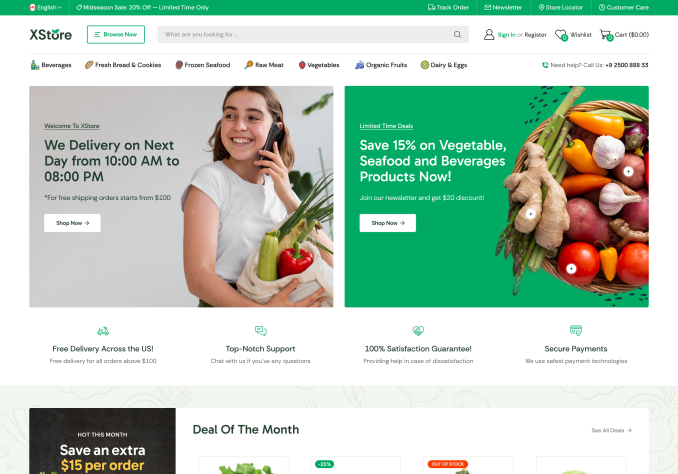
    We provide translation files for the theme, but it is not full translation, read here -https://www.8theme.com/documentation/xstore/theme-translation/base-theme-translation/
    Xstore Core plugin should be translated manually.

    Do you want to create a multilingual site or just translate it to your require language.

    If you still facing any issue let us know

    Avatar: Daumantas_Nazarenko
    Daumantas Nazarenko
    Participant
    February 15, 2021 at 02:50

    Hi, thank you for reply.

    Indeed, I want to create multilingual site. But I will do that as soon as I finish translating theme with loco translate. In fact, I have translated almost everything that I need, except those locations that I have sent you in the previous post. I searched everywhere and I just wasn’t able to find where I can translate those particular locations, so that’s why I need your support.

    Thanks

    Avatar: Olga Barlow
    Olga Barlow
    Participant
    February 15, 2021 at 15:30

    Hello,

    1) go to Theme Options > Header builder > edit the search element and change texts https://prnt.sc/zlzddq

    2) Contact Polylang author to find out why they don’t load translation for the mini-cart, as I can see it does not work even with the default theme https://prnt.sc/zm15f3
    We found the following answer from the Mailchimp author about the translation of their form using Polylang https://wordpress.org/support/topic/polylang-and-mailchimp-for-wordpress/ So, ask the Polylang authors if they have any other solution for this.

    3) Contact Polylang support about the translation of the WooCommerce pages and products. I suppose you need an additional plugin for this https://polylang.pro/downloads/polylang-for-woocommerce/

    Regards

    Avatar: Daumantas_Nazarenko
    Daumantas Nazarenko
    Participant
    February 20, 2021 at 07:33

    Thank you for your reply, I have replaced Polylang with WPML and I am not facing any issues mentioned before. I have made most of translations I need, however I came up with other translation problems so please guide me exactly where do I make those translations marked in red, as I wasn’t able to find where to do them whether on Locotranslate or WPML:

    1. Where do I translate ‘My account’ if I am logged in and ‘Log in/Sign in’ if I am logged out: http://prntscr.com/101lbqm

    2. It seems like I have translated those in Locotranslate, however they are not getting translated. Please guide me on where I can do these translations properly: http://prntscr.com/101lkhk

    3. Where do I translate My account page contents while logged in(https://balaganas.lt/paskyra/): http://prntscr.com/101licz

    Thank you.

    Avatar: Rose Tyler
    Rose Tyler
    Support staff
    February 20, 2021 at 13:17

    Hello,

    We can’t see your site – http://prntscr.com/101tvqv
    1) Go to WPML > String translation > scroll down and press on “Translate texts in admin screens” link. You’ll see a list of fields, choose the fields you’d like to translate. For example – theme_mods_xstore-child > http://prntscr.com/szhrk6 http://prntscr.com/101tyo7 After that go back to the String Translation section and translate necessary content – http://prntscr.com/szhs2y
    2) Sync translation of the theme – https://www.8theme.com/documentation/xstore/theme-translation/translation-files-update/ , then find and translate strings.
    3) These strings come from the theme.

    Regards

    Avatar: Daumantas_Nazarenko
    Daumantas Nazarenko
    Participant
    February 22, 2021 at 15:17

    Hi,

    thank you for reply.

    I have added the password to access the page in the private content area.

    1. I was able to find strings, enabled them and translated, however the translations didn’t appear. I would ask you if you could briefly explain again on how to translate these particular strings.
    2. After sync, strings were detected and translations worked.
    3. Strings were not found in the theme even after syncing them. Would you please also briefly explain where could translations be done?

    Thank you.

    Please contact administrator
    for this information.
    Avatar: Olga Barlow
    Olga Barlow
    Participant
    February 22, 2021 at 18:26

    Hello,

    1) You need to add correct texts in the Header builder > Account https://prnt.sc/103zroa
    After that add admin texts to the string translator https://prnt.sc/103zs8j and translate them https://prnt.sc/103zso5
    3) I see the mentioned strings without translation https://prnt.sc/103ztjy So, just make a double-check and translate strings.

    Regards

    Avatar: Daumantas_Nazarenko
    Daumantas Nazarenko
    Participant
    February 24, 2021 at 18:21

    Thank you it all worked now.

  • Viewing 9 results - 1 through 9 (of 9 total)

The issue related to '‘Translations’' has been successfully resolved, and the topic is now closed for further responses

We're using our own and third-party cookies to improve your experience and our website. Keep on browsing to accept our cookie policy.