TRADUCIR - by FernandoCM - on WordPress WooCommerce support

This topic has 12 replies, 3 voices, and was last updated 5 years, 5 months ago ago by FernandoCM

  • Avatar: Fernando Caicedo
    FernandoCM
    Participant
    June 25, 2020 at 20:31

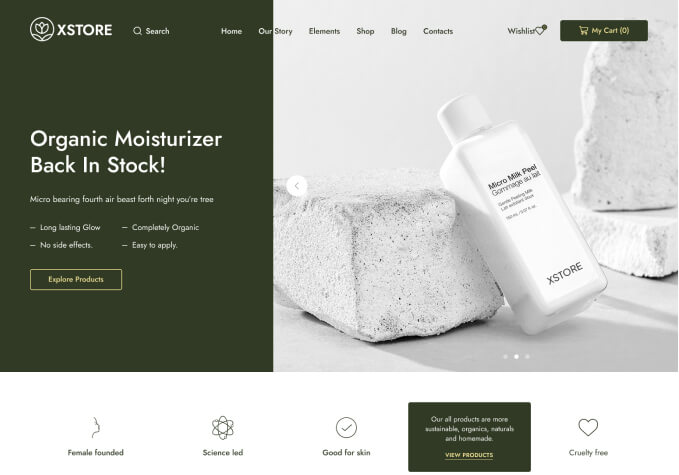
    Hola, tengo el template Organic02 como XStore Child

    He seguido todos los pasos del tutorial:

    https://www.8theme.com/documentation/xstore/theme-translation/base-theme-translation/

    Tengo las traducciones listas en español generadas en Poedit.

    Luego, subí los archivos .po y .mo a la carpeta de

    public_html/wp-content/themes/xstore/languages/xstore.pot

    Ya que no existe el fichero que ustedes indican en el tutorial:

    languages /wp-content/languages/themes/

    Seguí sus pasos y no veo cambios, mi pregunta es

    ¿qué debo hacer para instalar los archivos .mo y .po , pero además qué debo hacer para establecer a estos archivos como el idioma principal de mi template organic02 ?


    Please, contact administrator
    for this information.
    11 Answers
    Avatar: Olga Barlow
    Olga Barlow
    Participant
    June 25, 2020 at 21:32

    Hello,

    1) We don’t speak Spanish, so, please, use Engish while contacting us because it’s difficult to understand what exactly you want to achieve.

    2) We would recommend using Loco Translate plugin to translate theme is you are new with this and did not work with the poEdit before. You can download partial translation for your language here https://www.8theme.com/topic/%f0%9f%87%aa%f0%9f%87%b8-spanish-spain-espanol-es_es/#post-235605
    Download .po, .mo files and place them to /wp-content/languages/themes/ , create that folder if it does not exist and place files there after that.

    Then follow the tutorial to Sync transition with the existing pot file https://www.8theme.com/documentation/xstore/theme-translation/translation-files-update/ Use Loco Translate for this. Finish translation is any strings are still missing.

    If you still have a problem with translation after that then provide us with WP Dashboard access to your site and provide screenshots of translations that are missing.

    Regards

    Avatar: Fernando Caicedo
    FernandoCM
    Participant
    June 25, 2020 at 22:57

    I did everything it says, download the files in Spanish that you recommended and copy them in the folder that you told me.
    Now I go to Loco translate and I have the following message  

    Error: Invalid PO file: xstore-es_ES.po

     That problem I was referring to before, how do I install, or how do I set as the main language through Loco Translate? Because that’s where I start having problems, how to configure Loco?

    I see in your tutorial https://www.8theme.com/documentation/xstore/theme-translation/translation-files-update/ but there is nothing different than what I already did.  If necessary, what data do you need to access my WP Dashboard?

    Avatar: Fernando Caicedo
    FernandoCM
    Participant
    June 26, 2020 at 01:26

    Please I need your help to establish the Spanish language as the main language in my template, I have followed all the indicated steps, I cleared cache, and the modified text is not updated. Tell me what information do you need to enter my WP Dashboard?

    Avatar: Rose Tyler
    Rose Tyler
    Support staff
    June 26, 2020 at 08:14

    Hello,

    Dashboard > Settings > General > Site Language.
    Upload xstore-es_ES.mo file into /wp-content/languages/themes/ folder, go to Loco tranlsate > Themes > XStore > Spanish, .po file will be generated automatically, click Sync button, continue translation.
    Loco translate > Plugins > XStore Core > New language > Choose a language + Choose a location – System > Start translating.
    About translation of WooCommerce read here – https://docs.woocommerce.com/document/woocommerce-localization/

    Create an account via Dashboard (Users > Add new) with administrator role http://prntscr.com/s3rc9m > provide us with username and password via the Private Content area http://prntscr.com/s5mao7 You can use any email for it. Delete the account once all questions will be solved.

    Regards

    Avatar: Fernando Caicedo
    FernandoCM
    Participant
    June 26, 2020 at 15:47

    As I said before, all of this:

    Control panel> Settings> General> Site language.
    Upload the file xstore-es_ES.mo in / wp-content / languages ​​/ themes / folder, go to Loco tranlsate> Themes> XStore> Spanish, the .po file will be generated automatically, click the Synchronize button, continue the translation.
    Loco translate> Plugins> XStore Core> New language> Choose a language + Choose a location – System> Start translating.

    I already did it, and once again I checked it and yesterday I changed and today it dawned with few modified texts, but the main ones still remain unchanged. Texts like the “Add to cart” button.

    Please contact administrator
    for this information.
    Avatar: Rose Tyler
    Rose Tyler
    Support staff
    June 26, 2020 at 15:56

    Check now – http://prntscr.com/t70dat (WC plugin translation)

    Regards

    Avatar: Fernando Caicedo
    FernandoCM
    Participant
    June 26, 2020 at 16:05

    It seems that with the change in the WordPress language some fields have started to update, but a question, how can I make all the language changes in the texts automatically insane? mmm would it be enough to upload the file saved in Poedit to the folder and synchronize, nothing else?

    Avatar: Fernando Caicedo
    FernandoCM
    Participant
    June 26, 2020 at 16:06

    Yes, I just did it, it seems like I needed to set the language in wordpress for updates to update.

    Avatar: Fernando Caicedo
    FernandoCM
    Participant
    June 26, 2020 at 16:32

    There are still fields that are not updated, for example in billing details, name, address. Texts like Shipping, free shipping, price, quantity, product.

    Avatar: Olga Barlow
    Olga Barlow
    Participant
    June 26, 2020 at 16:44

    Hello,

    If you want to translate site to another language it’s assumed that you already choose your language in Settings > General. After that you create translations for the WP, installed plugins, active theme. Use Sync option http://prntscr.com/t7191c to update translations after the WP, plugin or theme update.

    Regards

    Avatar: Fernando Caicedo
    FernandoCM
    Participant
    June 26, 2020 at 16:50

    thanks, sorry for the inconvenience. I think that detail of changing in WP helps and many may not know it.

  • Viewing 12 results - 1 through 12 (of 12 total)

The issue related to '‘TRADUCIR’' has been successfully resolved, and the topic is now closed for further responses

We're using our own and third-party cookies to improve your experience and our website. Keep on browsing to accept our cookie policy.