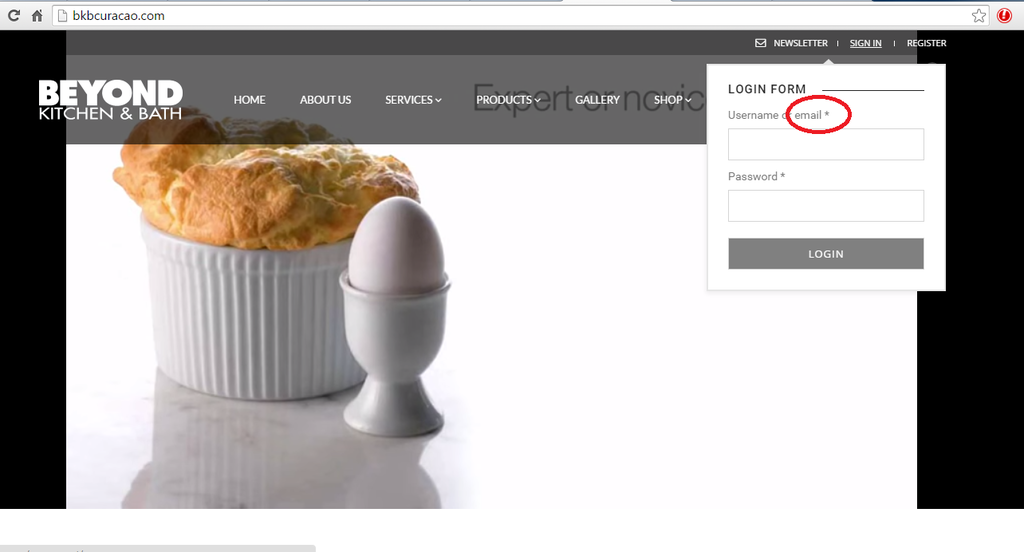
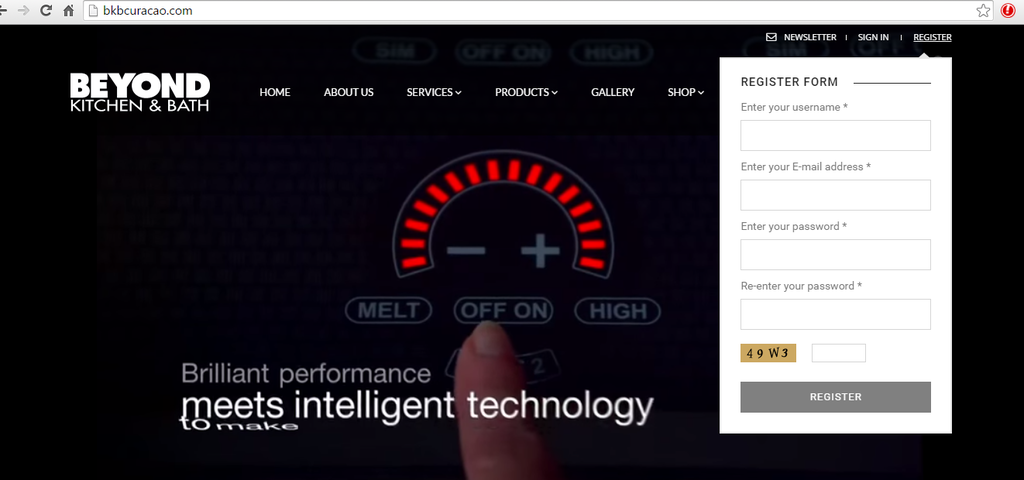
Register/Sign In/Shopping Cart - by Libardo

This topic has 40 replies, 3 voices, and was last updated 10 years, 4 months ago ago by Eva Kemp

  • Avatar: Libardo
    Libardo
    Participant
    July 21, 2015 at 17:34

    Hi Eva,

    You can check https://www.8theme.com/topic/space-planning-3d-design/ for the part of the Planning & Design page

    Avatar: Libardo
    Libardo
    Participant
    July 21, 2015 at 20:07

    =================
    PENDING POINTS
    =================
    Hi Eva,

    With respect to Point # 1./4./7. I would not like to change the colors but the text. I am just illustrating with colors what I would like to change.

    Kindly let me know how to achieve point 1 , 4, 5, 6 and 7. Also for the space-planning-3d-design page please try to click randomly true all the pictures. You will notice that the problem is still there. This we had it before and you have fixed it. But after the upgrade was done this seems to be the problem again.

    You can check https://www.8theme.com/topic/space-planning-3d-design/ for the part of the Planning & Design page

    ====================================================================================================
    NEW POINT # 1
    =================
    Hi Eva,

    How do I change the shopping icon to something else? For example if we would like to check how this icon looks what needs to be replaced or edit?

    http://fortawesome.github.io/Font-Awesome/icon/cart-arrow-down/

    The code for the color is good. I was able to change the color:

    .cart-bag .ico-sum::before {
    color: red !important;
    }

    Note:
    Also in case none of the icons is what we are looking for .. what code needs to be replaced for us to change back to the old icon and change this icon color if we would like?

    ====================================================================================================
    NEW POINT # 2
    =================

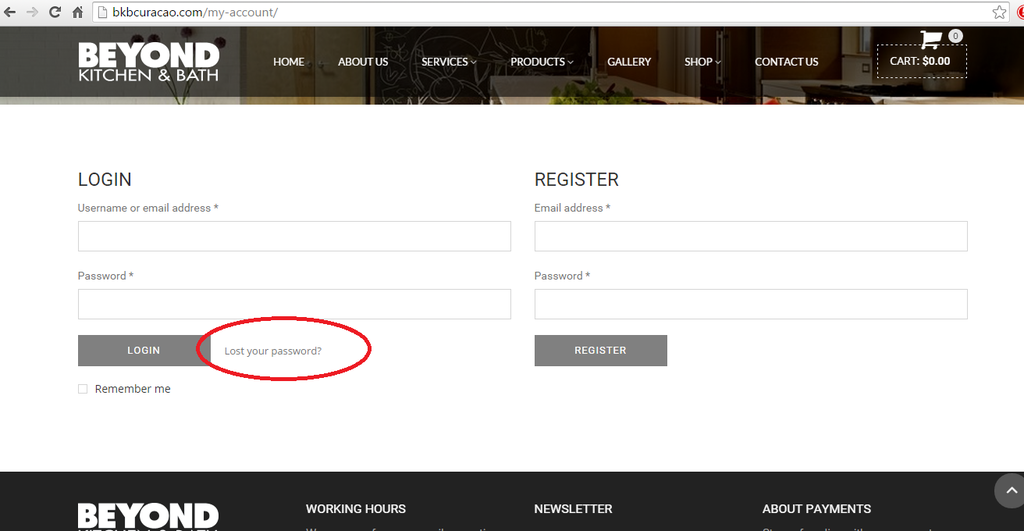
    When I click on Lost Password nothing happen. Is there a way to let the user request their password or rest the password?

    http://i1340.photobucket.com/albums/o728/LibardoBarreto/45_zpsukyuueea.png

    ====================================================================================================

    Avatar: Eva
    Eva Kemp
    Participant
    July 22, 2015 at 11:11

    Hello,

    1./4. To change the text for registration form you need edit the file wp-content/themes/royal/framework/theme-functions.php (find the section “! Registration Form”), line 1275.

    5. “Username or email” text can be changed in the same file in line 931.

    6. To edit those labels open the file wp-content/themes/royal/woocommerce/myaccount/form-login.php (lines 29, 74).

    7. To edit contact form open the file wp-content/themes/royal/framework/shortcodes.php (find the section “! Contact form” in line 212) and edit the labels.
    Make all changes in the child theme!

    I’ve added the code again to CSS block of VC editor on the page “SPACE PLANNING & 3D DESIGN”:

    div.pp_overlay, .pp_content_container, div.pp_pic_holder {
       display: none !important;
    }
    
    .mfp-bg, .mfp-wrap {
     display: none !important;
    }

    Please check projects now.

    To change cart icon edit this code in child style.css:

    .cart-bag .ico-sum::before {
       content: "\f07a" !important;
        font-family: FontAwesome;
        font-size: 30px !important;
        top: -18px !important;
        left: -20px !important;
        border-color: transparent !important;
    }

    and in content: "\f07a" !important; write other icon code instead of \f07a. If you don’t like any of the icon place this code \f07a back for “content” line.

    I’ve edited the file form-login.php in the directory wp-content/themes/royal-child/woocommerce/myaccount. Please check “Lost password” link now.

    Regards,
    Eva Kemp.

    Avatar: Libardo
    Libardo
    Participant
    July 22, 2015 at 15:29

    Hi Eva,

    I checked the response for Point 1, 4 , 5 ,6 but non where in the line you mentioned. However I scroll down and notice these and made only the ” email ” to ” e-mail “. After I made the change in the Child Theme then clear cache in my browser but dont see the change take effect. Can you check this?

    1./4. To change the text for registration form you need edit the file wp-content/themes/royal/framework/theme-functions.php (find the section “! Registration Form”), line 1275.

    5. “Username or email” text can be changed in the same file in line 931.

    6. To edit those labels open the file wp-content/themes/royal/woocommerce/myaccount/form-login.php (lines 29, 74).

    ================================================================================================

    For pint # 7 I also checked but where not in the line you mentioned. However I am unable to find the ” Name and Surname * “. I would like to change this to ” Full Name * “. The same is for ” Website * ” I would like to change this to ” Telephone * “.

    7. To edit contact form open the file wp-content/themes/royal/framework/shortcodes.php (find the section “! Contact form” in line 212) and edit the labels.

    ================================================================================================

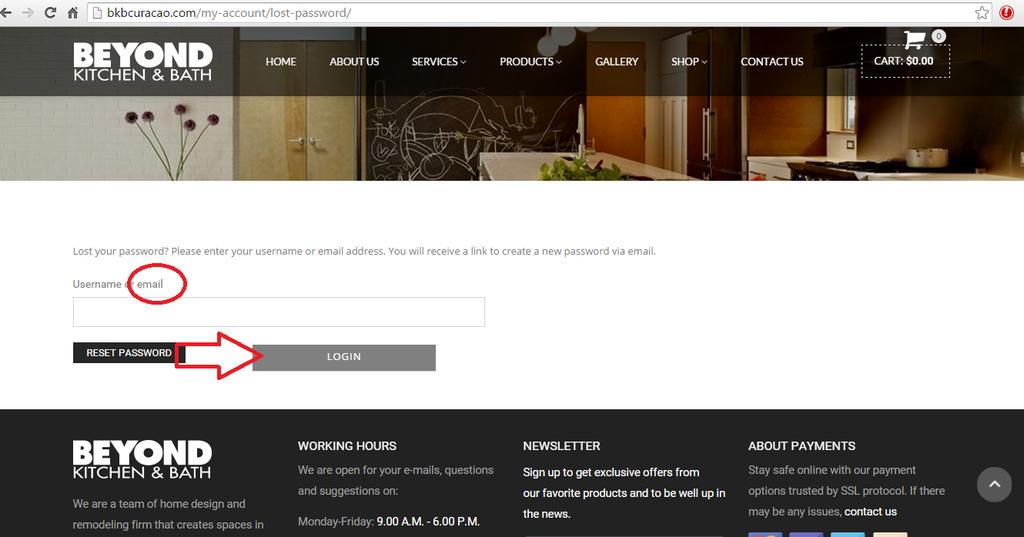
    In addition can you also change the ” email ” to ” e-mail ” below? I would also like to make the button light grey and then dark grey after hover mouse over the button.

    http://i1340.photobucket.com/albums/o728/LibardoBarreto/335_zps6xmx53ml.png

    Avatar: Libardo
    Libardo
    Participant
    July 22, 2015 at 15:44

    Hi Eva,

    I checked the response for Point 1, 4 , 5 ,6 but non where in the line you mentioned. However I scroll down and notice these and made only the ” email ” to ” e-mail “. After I made the change in the Child Theme then clear cache in my browser but dont see the change take effect. Can you check this?

    1./4. To change the text for registration form you need edit the file wp-content/themes/royal/framework/theme-functions.php (find the section “! Registration Form”), line 1275.

    5. “Username or email” text can be changed in the same file in line 931.

    6. To edit those labels open the file wp-content/themes/royal/woocommerce/myaccount/form-login.php (lines 29, 74).

    ================================================================================================

    For pint # 7 I also checked but where not in the line you mentioned. However I am unable to find the ” Name and Surname * “. I would like to change this to ” Full Name * “. The same is for ” Website * ” I would like to change this to ” Telephone * “.

    7. To edit contact form open the file wp-content/themes/royal/framework/shortcodes.php (find the section “! Contact form” in line 212) and edit the labels.

    ================================================================================================

    In addition can you also change the ” email ” to ” e-mail ” below? I would also like to make the button light grey and then dark grey after hover mouse over the button.

    http://i1340.photobucket.com/albums/o728/LibardoBarreto/335_zps6xmx53ml.png

    ================================================================================================

    Also I tried to use this code for Shopping Cart but is not display good.

    .cart-bag .ico-sum::before {
    content: “\e116” !important;
    font-family: FontAwesome;
    font-size: 30px !important;
    color: #a5a5a5;
    top: -18px !important;
    left: -20px !important;
    border-color: transparent !important;
    }

    I got the code from here : http://glyphicons.bootstrapcheatsheets.com/

    Also the color does not seems to change using the code above. Please let me know which code to add into the code to change the color.

    Avatar: Libardo
    Libardo
    Participant
    July 23, 2015 at 19:49

    Hi Eva,

    I only missing a update for this one.
    Thanks..

    Avatar: Eva
    Eva Kemp
    Participant
    July 24, 2015 at 09:34

    Hello,

    The code “\e116” isn’t used for FontAwesome font, but for Glyphicons font. Such code won’t work with our theme.
    You should use code from this site http://fontawesome.bootstrapcheatsheets.com/ .

    7. I’ve added this code in /wp-content/themes/royal-child/functions.php:

    remove_shortcode('contact_form', 'et_contact_form');
    add_shortcode('contact_form', 'et_contact_form_child');
    
    add_action('init','remove_parent_functions');
    
      function et_contact_form($atts) {
        extract( shortcode_atts( array(
          'class' => ''
        ), $atts ) );
        
        $captcha_instance = new ReallySimpleCaptcha();
        $captcha_instance->bg = array( 204, 168, 97 );
        $word = $captcha_instance->generate_random_word();
        $prefix = mt_rand();
        $img_name = $captcha_instance->generate_image( $prefix, $word );
        $captcha_img = ETHEME_CODE_URL.'/inc/really-simple-captcha/tmp/'.$img_name;
    
        ob_start();
        ?>
            <div id="contactsMsgs"></div>
            <form action="<?php the_permalink(); ?>" method="get" id="contact-form" class="contact-form <?php echo $class; ?>">
                
                <div class="form-group">
                  <p class="form-name">
                    <label for="name" class="control-label"><?php _e('Full Name', ETHEME_DOMAIN) ?> <span class="required">*</span></label>
                    <input type="text" name="contact-name" class="required-field form-control" id="contact-name">
                  </p>
                </div>
    
                <div class="form-group">
                    <p class="form-name">
                      <label for="contact-email" class="control-label"><?php _e('E-Mail', ETHEME_DOMAIN) ?> <span class="required">*</span></label>
                      <input type="text" name="contact-email" class="required-field form-control" id="contact-email">
                    </p>
                </div>
                
                <div class="form-group">
                  <p class="form-name">
                    <label for="contact-website" class="control-label"><?php _e('Telephone', ETHEME_DOMAIN) ?></label>
                    <input type="text" name="contact-website" class="form-control" id="contact-website">
                  </p>
                </div>
                
    
                <div class="form-group">
                  <p class="form-textarea">
                    <label for="contact_msg" class="control-label"><?php _e('Message', ETHEME_DOMAIN); ?> <span class="required">*</span></label>
                    <textarea name="contact-msg" id="contact-msg" class="required-field form-control" cols="30" rows="7"></textarea>
                  </p>
                </div>
                
                <div class="captcha-block">
                  <img src="<?php echo $captcha_img; ?>">
                  <input type="text" name="captcha-word" class="captcha-input">
                  <input type="hidden" name="captcha-prefix" value="<?php echo $prefix; ?>">
                </div>
                
                <p class="pull-right">
                  <input type="hidden" name="contact-submit" id="contact-submit" value="true" >
                  <span class="spinner"><?php _e('Sending...', ETHEME_DOMAIN) ?></span>
                  <button class="btn btn-black big" id="submit" type="submit"><?php _e('Send message', ETHEME_DOMAIN) ?></button>
                </p>
    
                <div class="clearfix"></div>
            </form>
        <?php
        $output = ob_get_contents();
        ob_end_clean();
        
        return $output;
      }

    I’ve changed “email” to “e-mail” on “Lost Password” page in the file /wp-content/themes/royal-child/woocommerce/form-lost-password.php.
    Please check.

    Regards,
    Eva Kemp.

    Avatar: Libardo
    Libardo
    Participant
    July 24, 2015 at 13:26

    Thanks Eva… All looks good except the following:

    1.) http://i1340.photobucket.com/albums/o728/LibardoBarreto/5_zpsf4xkwrlw.png
    ” email ” needs to be ” e-mail “. I tried following the steps provided and change it but still showing the same. Can you please check and let me know which code or where it was change for the child theme?

    2.) http://i1340.photobucket.com/albums/o728/LibardoBarreto/4_zpscn23tibi.png
    “E-mail” needs to be “e-mail”. I tried following the steps provided and change it but still showing the same. Can you please check and let me know which code or where it was change for the child theme?

    3.) The code “\e116″ isn’t used for FontAwesome font, but for Glyphicons font. Such code won’t work with our theme.
    You should use code from this site http://fontawesome.bootstrapcheatsheets.com/

    In this case can I have the code in order to show the shopping cart just like this:

    http://i1340.photobucket.com/albums/o728/LibardoBarreto/Screenshot_2015-07-19-10-47-17_zpszfudpjce.png

    Please, contact administrator
    for this information.
    Avatar: Libardo
    Libardo
    Participant
    July 24, 2015 at 17:32

    Hi Eva,

    Any update for me?
    Thanks..

    Avatar: Eva
    Eva Kemp
    Participant
    July 26, 2015 at 08:34

    Hello,

    1./2. I’ve made changes in child functions.php file/

    3. I’ve uncommented the code

    .ico-sum {
        width: 18px;
        height: 21px;
        background: transparent url("https://www.8theme.com/demo/royal/wp-content/themes/royal/images/sprite/icons.png") no-repeat scroll 0px 0px; 
        display: block;
        top: 0px;
    }

    and commented the other code where you added icons:

    .cart-bag .ico-sum::before {       
        /*color: #FFFFFF !important;
        content: "\f07a" !important;
        font-family: FontAwesome;
        font-size: 30px !important;
        top: -18px !important;
        left: -20px !important; */
        border-color: transparent !important;
    }
    
    /*.cart-bag .ico-sum::before {   content: "\f218" !important;    font-family: FontAwesome;    font-size: 30px !important;	color: #a5a5a5;    top: -18px !important;    left: -20px !important;    border-color: transparent !important;} */

    Please check now.

    Regards,
    Eva Kemp.

  • 1 2
    Viewing 40 results - 31 through 40 (of 40 total)

You must be logged in to reply to this topic.Log in/Sign up

We're using our own and third-party cookies to improve your experience and our website. Keep on browsing to accept our cookie policy.