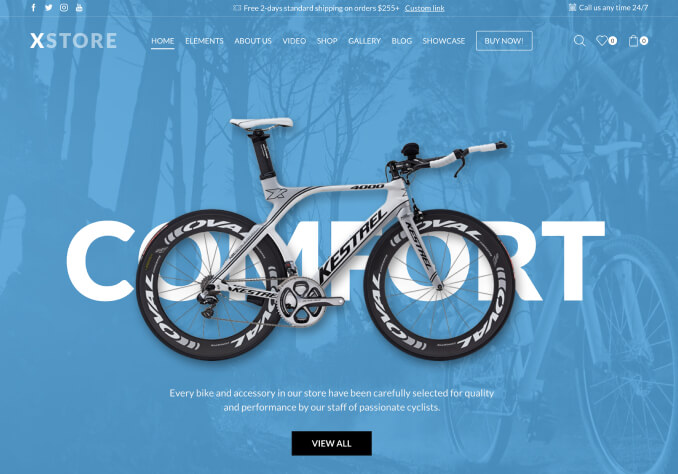
How to change the logo in the Mobile menu? It is showing Xstore logo in the mobile menu
This topic has 4 replies, 3 voices, and was last updated 5 months, 3 weeks ago ago by Jack Richardson
neeha
Participant
April 20, 2026 at 23:30
How to change the logo in the Mobile menu? It is showing Xstore logo in the mobile menu
3 Answers
Andrew Mitchell
Support staff
April 21, 2026 at 06:57
Hello, neeha,
Please open the Elementor header editor and locate the “Site Logo” element. Under this element, add another “Image” element (this will serve as the logo for mobile devices). Then, in the “Image” element settings, go to the Advanced tab, find the Responsive section, and select the options to hide it on desktop and tablet (as shown in the screenshots).
Next, open the “Site Logo” element settings, go to Advanced → Responsive, and select the option to hide it on mobile devices.
Best regards,
8Theme Team
Files is visible for topic creator and support staff only.
neeha
Participant
April 21, 2026 at 18:28
Sorry not able to follow the steps
Why to hide in hide it on desktop and tablet ?
Problem is only in mobile it is showing Xstore logo
in desktop it is showing correct logo.
Jack Richardson
Support staff
April 22, 2026 at 07:55
Hello @neeha,
We have reviewed your website and noticed that your logo has been added to the header as a default image element. As a result, the original logo image from the demo content is still being used.
We recommend that you either update your logo in the current header (the one displayed on your desktop and currently set as the image widget) by replacing it with the appropriate widget and uploading the correct image, as shown here: https://prnt.sc/CXXrwQ3uB3tp. This will ensure that the logo is also displayed correctly in your mobile menu.
Alternatively, you can set your logo (which appears in the mobile menu widget) following this example: https://gyazo.com/daf1657532af663100eb00e1b242581d. You can open any page, post, or header template built with Elementor and access the Site Settings as demonstrated in the video.
If you still require our assistance, please provide temporary wp-admin access in a private message so that we can help you configure your header.
Best regards,
Jack Richardson
The 8Theme’s Team
Viewing 4 results -
1 through 4 (of 4 total)
You must be logged in to reply to this topic.Log in/Sign up