How can I add product category ? - by chutipao

This topic has 7 replies, 3 voices, and was last updated 1 months ago ago by Tony Rodriguez

  • Avatar: chutipao
    chutipao
    Participant
    November 4, 2025 at 07:08

    hello
    how can I change product categorie ?
    apperance > menu ???

    or you have your own custom menu for this ?

    Files is visible for topic creator and
    support staff only.
    6 Answers
    Avatar: Alex Carter
    Alex Carter
    Support staff
    November 4, 2025 at 07:58

    Hello,

    Thank you for reaching out to us.

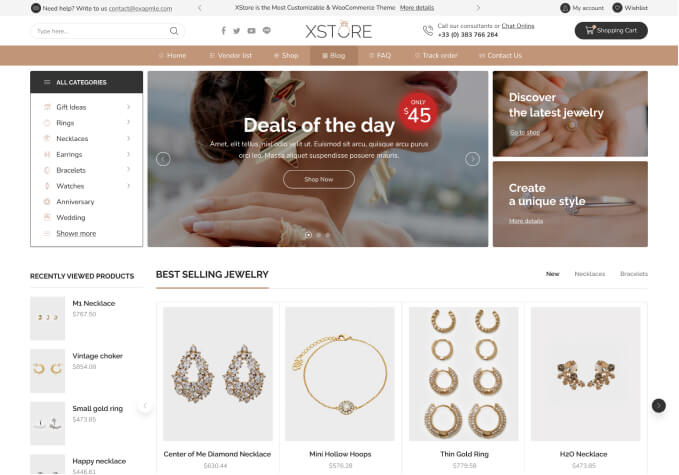
    In your screenshot, we can see a header builder element whose content can be modified through the template settings. You can find detailed instructions in our documentation: https://www.8theme.com/documentation/xstore/xstore-builders/new-xstore-header-builder-with-elementor/

    For example: https://prnt.sc/rk09TSFPs5r7

    If you have any additional questions or concerns, please do not hesitate to reach out to us. Our support team is always available to assist you.

    Warm Regards,
    The 8Theme Team

    Avatar: chutipao
    chutipao
    Participant
    November 4, 2025 at 09:27

    dear…this is very weird…usually I can add mother, child category at
    admin > apperance > menu

    but I must to add menu at homepage (page) ???

    then how can I add child- category ?

    this is very weird theme….woodmart has header menu at theme option…but your theme doesn’t have it

    how can I add child-theme ?

    Avatar: Alex Carter
    Alex Carter
    Support staff
    November 4, 2025 at 12:22

    Hello,

    We understand your surprise, but there is no need to worry. What you are describing is an older technology that is actually the default one and still works. However, our demo uses a new technology with the Header Builder and the Elementor plugin.

    There is no need to return to the old method β€” we are here to help you understand how everything works with the new one.

    To begin, please read the article about the Header Builder that we sent you in the previous message. Then, you have two options:
    – Simply edit the current demo menu settings: https://prnt.sc/rk09TSFPs5r7
    – Or replace the elements currently used with those that use Admin > Appearance > Menu, as shown here: https://prnt.sc/ePRr3dbycotG

    We have created two elements for you- Add Departments Menu: https://prnt.sc/zucoJetWw7Vm.
    Please open the Header Builder and work with both elements to see which one you prefer to configure – the one using the old or the new menu creation technology.

    You can also check this documentation for more details:
    https://www.8theme.com/documentation/xstore/menu-set-up/how-to-enable-product-categories-for-menus/

    We also noticed that you are already using a child theme on your site: https://prnt.sc/SBpnAfS-sqA1

    Best Regards,
    8Theme’s Team

    Avatar: chutipao
    chutipao
    Participant
    November 4, 2025 at 13:03

    just understand all of your functions

    just know all theme function is same

    thank you for best and fastest answer

    best theme ever before

    i love xstore

    Avatar: chutipao
    chutipao
    Participant
    November 4, 2025 at 13:04

    Thanks for the support! My topic “how can I add product category ?” has been successfully resolved.

    Avatar: Tony Rodriguez
    Tony Rodriguez
    Support staff
    November 4, 2025 at 13:04

    Dear chutipao,

    Thanks for being part of the WordPress & WooCommerce community!

    We’re happy we could assist you. Your feedback truly matters β€” it helps us make XStore better, faster, and more reliable with every release.

    πŸ’¬ Share your quick feedback here (takes less than a minute)

    Together, we’re shaping a better WooCommerce experience for everyone.

    Topic closed.
    The 8Theme Team

  • Viewing 7 results - 1 through 7 (of 7 total)

The issue related to '‘how can I add product category ?’' has been successfully resolved, and the topic is now closed for further responses

We're using our own and third-party cookies to improve your experience and our website. Keep on browsing to accept our cookie policy.