Design Problems - by mildac - on WordPress WooCommerce support

This topic has 14 replies, 3 voices, and was last updated 10 years, 2 months ago ago by Stan Russell

  • Avatar: mildac
    mildac
    Participant
    September 25, 2015 at 10:16

    Hello,

    I need your help on some issues.

    1) On single product page, the image sizes are huge. I tried to change the size via Theme Options – Single Product Page and also WooCommerce – Settings – Products – Display. But it didnot work. What should I do?

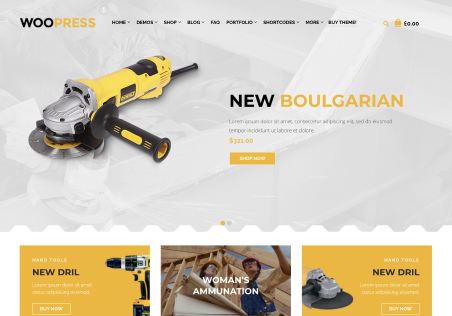
    2) On home page of theme demo, there is featured products” and ”latest products” sections. I know how to assign latest products. But dont have any clue to show featured products.

    3) Wishlist button: On my single product pages, there are two add to wishlist buttons. One of them is nearby price and the other one is nearby ”add to cart”. How to omit the button near by the price? (I’ve uploaded the demo, and it came with the package)

    4) Quantity button: I need the exact version on demo rather than the button goes up and down. I need the right and left…

    5) Adding sizing guides to single product pages: How to add sizing pages links to the single product page?

    6) While adding a product, if the product is a variable product, we see a banner like ”product was successfully added to your cart”, but if the product is a simple product, we see a pop-up ”continue shopping-check-out”. I would like to see the banner on simple products also rather than a pop-up.

    7) There is a search button on left sidebar of cart and checkout pages which is unnecessary. I checked the widgets. But there is no widget. So how we can discard this search button?

    8) On checkout pages, I dont want to make to fill the county line. Actually I dont need even such a line. How we can do this? (And on our test even if we dont fill the compulsory blanks, we can skip to the next page. how this could be possible?)

    Thank you for your help in advance,

    Appreciated…

    Please, contact administrator
    for this information.
    13 Answers
    Avatar: mildac
    mildac
    Participant
    September 25, 2015 at 11:09

    9) The resolution on the headers of product categories is awful. We are uploading high resolution pictures, but when change the size, the resolutions is getting worse. How we can solve this problem? Any additional code or sth?

    Avatar: mildac
    mildac
    Participant
    September 25, 2015 at 11:49

    10) I dont know why but the visual composer doesnot work on static block. Actually we cannot see even the button of visual composer on static blocks. So we cannot organize our footers as told on your video tutorials. How we can fix this problem?

    Avatar: Jack Richardson
    Jack Richardson
    Support staff
    September 25, 2015 at 14:17

    Hello,

    1. Try to regenerate thumbnails with this plugin https://wordpress.org/plugins/regenerate-thumbnails/ .

    2. You need to click on the star in the product listing to set featured products.

    3. Go to YIT Plugins > Wishlist > General Settings > select “Use shortcode” in “Position” field.

    4. Our demo uses old Woocommerce version. That feature with quantity arrows was removed in recent Woocommerce update. So now it’s not available.

    5. Go to Products > edit a product > upload your image in “Size Guide img” field in “Additional product options” block.

    6. Go to Theme Options > Single Product Page > Ajax “Add to Cart” > Off.

    7. Go to Pages > edit Cart and Checkout pages and select “Without Sidebar” in “Sidebar Position” field in Page Layout box on the right side.

    8. The error message will appear to fill in the form at the end of the checkout process.
    To remove the county field add this code in functions.php file:

    add_filter( 'woocommerce_checkout_fields' , 'custom_override_checkout_fields' );
     function custom_override_checkout_fields( $fields ) {
       unset($fields['billing']['billing_state']);
       return $fields;
    }

    9. Please show a screenshot of the issue for better understanding.

    10. Go to Visual Composer in WP Dashboard > Settings > Content Types and select “Static Blocks”.

    Best regards,
    Jack Richardson.

    Avatar: mildac
    mildac
    Participant
    September 25, 2015 at 15:06

    Thank you Jack,

    5. Go to Products > edit a product > upload your image in “Size Guide img” field in “Additional product options” block.

    How we can arrange it as a pop-up?

    9. Please see the Private Content.

    Please, contact administrator
    for this information.
    Avatar: mildac
    mildac
    Participant
    September 25, 2015 at 19:40

    1) 1. Try to regenerate thumbnails with this plugin https://wordpress.org/plugins/regenerate-thumbnails/ .

    Dear Jack, I reneregated all images but didnot work. Maybe I am doing sth wrong. It fits perfect on mobile version, but huge on desktoo. When you have time I kindly to ask have a look.

    Thanks in advance.

    Avatar: Jack Richardson
    Jack Richardson
    Support staff
    September 28, 2015 at 13:44

    Hello,

    1. Try to use this code in custom.css file:

    .sxy-zoom-container {
        width: 200px !important;
    }

    5. I’ve disabled default lightbox in Woocommerce > Settings > Products > Display. Please check size guide popup now.

    9. Please try to upload image in higher resolution with original dimensions 1200px × 400px.

    Best regards,
    Jack Richardson.

    Avatar: mildac
    mildac
    Participant
    September 28, 2015 at 16:40

    Thank you for 5th.

    1 and 9 unsolved.

    I cannot believe this. On single product page, I have images bigger than necessary, and on headers; blurred images which should not be.

    Avatar: Jack Richardson
    Jack Richardson
    Support staff
    September 29, 2015 at 12:01

    Hello,

    1. I’ve added this code in custom.css:

    .sxy-zoom-container,  .single-product-page .images.shown, .main-image-slider {
        width: 200px !important;
    }
    .single-product-page .images.shown {
       margin-left: 30%;
    }
    .thumbnails {
        margin-left: -50px !important;
    }

    Please check single product image now.

    9. In this category “Paplūdimys” you had image source written as
    <a href="/wp-content/uploads/2013/12/s2.jpg"><img class="alignnone size-medium wp-image-639" src="/wp-content/uploads/2013/12/s2-300x250.jpg" alt="s2.jpg" width="900" height="306" /></a>
    I’ve removed this part -300x250 from the link /wp-content/uploads/2013/12/s2-300×250.jpg and now image is shown properly. Please check this category page.

    Best regards,
    Jack Richardson.

    Avatar: mildac
    mildac
    Participant
    September 29, 2015 at 14:25

    Dear Jack,

    Thank you for your efforts. 9th is great. May I kindly ask to you remove the link of my page on your post please?

    Regarding to 1st, I am very really sory for this but now the images are very small. The previous version was better. I removed the code on custom.css file but it is still small. Can we revert this please? Or at least make it bigger?

    Thank you for million times…

    Avatar: mildac
    mildac
    Participant
    September 29, 2015 at 14:40

    Dear Jack,

    I am not sure if you did sth. But it is okay right now. Just kindly ask you to remove the link of my page on your previous post.

    Thank you for your help again and again.

    Avatar: Jack Richardson
    Jack Richardson
    Support staff
    September 29, 2015 at 15:49

    Hello,

    I’ve removed your site name from my post.
    Is you issue resolved now?

    Best regards,
    Jack Richardson.

    Avatar: mildac
    mildac
    Participant
    September 29, 2015 at 19:07

    Thank you Jack. You can close the ticket. Thanks for your help.

    Avatar: stan
    Stan Russell
    Participant
    September 30, 2015 at 07:23

    Hello mildac,

    you are welcome! Have a nice day!

    Regards,
    Stan Russell.

  • Viewing 14 results - 1 through 14 (of 14 total)

The issue related to '‘Design Problems’' has been successfully resolved, and the topic is now closed for further responses

We're using our own and third-party cookies to improve your experience and our website. Keep on browsing to accept our cookie policy.