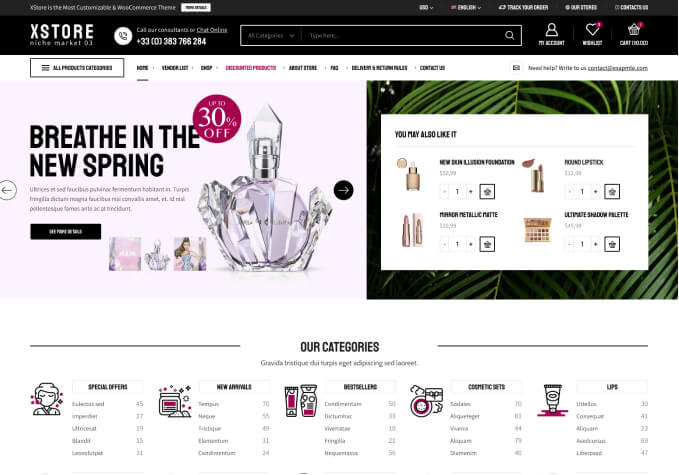
Can’t show my categories on the all departments area

This topic has 8 replies, 2 voices, and was last updated 3 hours, 33 minutes ago ago by Ayan Rahman

  • Avatar: Mahi
    Mahi
    Participant
    April 3, 2026 at 12:40

    I bought this grocery store theme, and by default on the theme on the ALL DEPARTMENTS section on the home page they’re were a lot of categories where u can click and find the products, I have a electronics eshop so ofcourse I wanted to change the “healthy foods” “meat” categories to for example: “chargers” and “covers” category but I couldn’t just edit them, so I deleted them and added my own categories in the WordPress dashboard. now when I click the 3 lines on the logo and go to categories I see them but I want them visible on the homepage like it was in the default theme. How do I add my categories there please advice. thank you. MY website is tekzo.cz

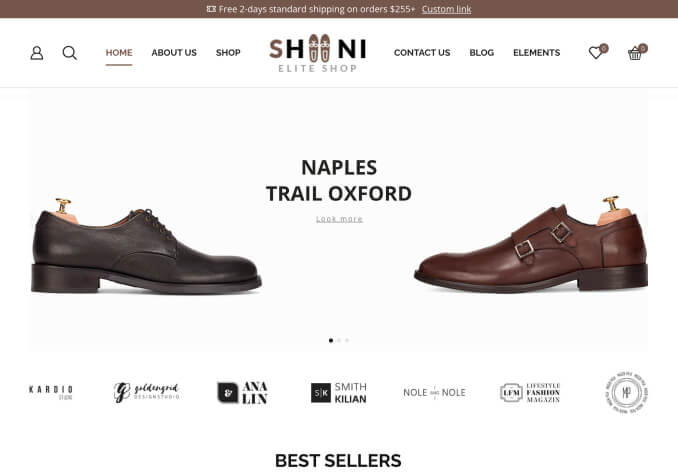
    Files is visible for topic creator and
    support staff only.
    7 Answers
    Avatar: Ayan Rahman
    Ayan Rahman
    Support staff
    April 3, 2026 at 12:50

    Hi,

    Thank you for reaching out to us.

    Could you please provide temporary wp-admin access? We need to check your settings.

    To grant WP-Admin access, please proceed to create a new user account with an administrator role through your WordPress Dashboard. Once the account is established, you may securely transmit the username and password to us via the Private Content section designated for this purpose.

    Warm Regards,
    The 8Theme Team

    Avatar: Mahi
    Mahi
    Participant
    April 3, 2026 at 13:17

    hope this helps, I just want my categories visible in the all department sections, thanks

    Content is visible for topic creator and
    support staff only.
    Avatar: Ayan Rahman
    Ayan Rahman
    Support staff
    April 4, 2026 at 07:18

    Hi,

    We’ve created the categories menu for you via Appearance > Menus. Please check the result. Read more – https://www.8theme.com/documentation/xstore/menu-set-up/how-to-enable-product-categories-for-menus/

    Warm Regards,
    The 8Theme Team

    Avatar: Mahi
    Mahi
    Participant
    April 4, 2026 at 07:45

    Thanks a lot for the help man. Have a nice day

    Avatar: Ayan Rahman
    Ayan Rahman
    Support staff
    April 4, 2026 at 09:27

    Hi,

    Thank you very much for your kind message and appreciation. We are always happy to assist you.
    Have a wonderful day!

    Best Regards,
    8Theme’s Team

    Avatar: Mahi
    Mahi
    Participant
    April 4, 2026 at 20:05

    Hi Ayan after you helped me everything was working fine but now suddenly i have encountered a couple of new errors. The first one being that my “All departments” menu is now showing buttons like HOME, ELEMENTS,BLOG, CONTACTS , BUY THEME etc. instead of my categories . Second thing is that i added about 10 new categories which i cant even see on the appearance < menu page . If i could see those categories i would drag them and add it to my "ALL DEPARTMENTS" menu. I am attaching photos please advice. You have my log in so please fix it and if possible tell me how you did it so I dont have to ask you every time. Thanks

    Files is visible for topic creator and
    support staff only.
    Avatar: Ayan Rahman
    Ayan Rahman
    Support staff
    April 5, 2026 at 09:05

    Hi,

    1/ Please make sure the menu is selected via Header Builder – https://prnt.sc/orOGsIObX5I9

    2/ Your screenshot shows posts categories, but you need product categories https://prnt.sc/k40U4hCAQLUe , so please read this article to learn how to enable product categories via Screen Options for the menu – https://www.8theme.com/documentation/xstore/menu-set-up/how-to-enable-product-categories-for-menus/

    If you have any additional questions or concerns, please do not hesitate to reach out to us. Our support team is always available to assist you.

    Warm Regards,
    The 8Theme Team

  • Viewing 8 results - 1 through 8 (of 8 total)

You must be logged in to reply to this topic.Log in/Sign up

We're using our own and third-party cookies to improve your experience and our website. Keep on browsing to accept our cookie policy.