Is there a way to change the color of the Cart and Search Icons on the vertical Header style 14? Please refer to the red arrows within the provided image, thanks.
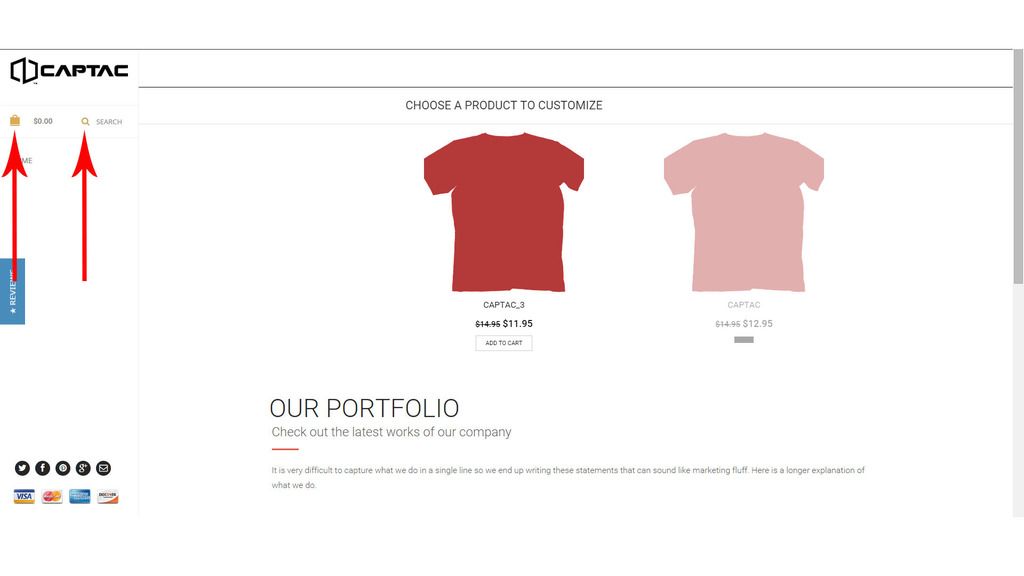
I would like the color of these icons to be hex #333333
This topic has 15 replies, 4 voices, and was last updated 10 years, 7 months ago ago by Robert Hall
Is there a way to change the color of the Cart and Search Icons on the vertical Header style 14? Please refer to the red arrows within the provided image, thanks.

I would like the color of these icons to be hex #333333
Hello,
In this case images with gold color are used. If you want to change color you need upload new images with your own color or edit icons.png file with some program, for example Photoshop.
Please look here: http://custom.captac.co/wp-content/themes/royal/images/sprite/icons.png
Regards,
Robert Hall.
Thanks for the response. How do I replace the images once I have the new icons made?
You need upload them to wp-content/themes/royal/images/ folder via FTP and add code to custom.css file.
For example, if you upload image like img.png code will be next
background: url(images/img.png) no-repeat 0 0;
Regards,
Robert Hall.
Thanks for the response. More specifically, what code do I add to the custom.css file to replace the cart icon, and search icon? I uploaded my image files to the image folder via FTP. My image file names are Cart_icon.png and search_icon.png . Please advise….
Hello
You may add following code into the custom.css for search icon:
.fa-search::before{visibility:hidden !important;}
.fa-search{background: url(wp-content/themes/royal/images/search_icon.png) no-repeat 0 0 !important;}
and for “add to cart” on single product page:
.cart .button[type="submit"]{background:url(wp-content/themes/royal/images/cart.png) no-repeat 0 0 !important;}
Just replace url() with your own path to image.
With best regards
Brian Johnson
Hello,
You need use this code:
.ico-sum {
width: 25px;
height: 29px;
background-image: url("images/Cart_icon.png") !important;
}
.fa-search::before {
content: url("https://custom.captac.co/wp-content/themes/royal/images/search_icon.png");
}
Regards,
Eva Kemp.
Brian and Eva,
Thanks for the replies, the code you provided doesn’t seem to be working. Am I doing something wrong?
Please tell us what is the path to your icons.
With best regards
Brian Johnson
I’m not sure. I was told to upload them via FTP into the image folder, so I did. So I am assuming wp-content/themes/royal/images/search_icon.png
wp-content/themes/royal/images/cart_icon.png
Does this help?
Hello
Please use this code for search icon:
.fa-search{background: url(https://custom.captac.co/wp-content/themes/royal/images/search_icon.png) no-repeat 0 !important;}
and this for cart icon:
.ico-sum {
width: 29px!important;
height: 29px;
background-size:cover;
background: url("https://custom.captac.co/wp-content/themes/royal/images/Cart_icon.png") 0px 0px no-repeat !important;
}
Please clear your browser cache after placing code into the custom.css.
With best regards
8-theme
The code mostly worked. The New Black Cart Icon is perfect, but the New Black Search Icon is now placed next to the original gold one, so I have two search icons. Please advise….
Hello,
Please use this code:
.fa-search::before {
content: url("https://custom.captac.co/wp-content/themes/royal/images/search_icon.png") !important;
}
Regards,
Eva Kemp.
That worked. Thank you very much.
Hello,
You’re welcome!
Regards,
Robert Hall.
The issue related to '‘Icon Color Change’' has been successfully resolved, and the topic is now closed for further responses