Need help with link font size aqnd alignment

This topic has 4 replies, 2 voices, and was last updated 8 hours, 32 minutes ago ago by Andrew Mitchell

  • Avatar: Lani
    Lani
    Participant
    March 23, 2026 at 04:19

    Hi,

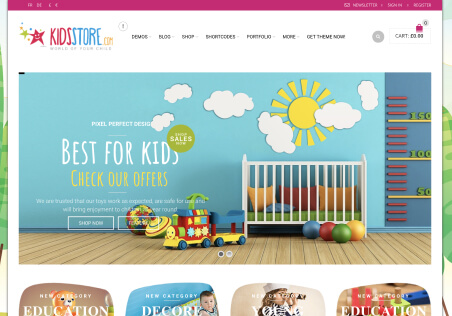
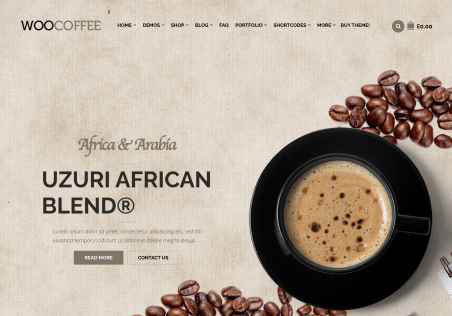
    How do I change the color and size of the font in the link button of the (screenshot 1), and how do I do the same for the (2nd Screenshot) and align it too?

    Thanks

    Files is visible for topic creator and
    support staff only.
    3 Answers
    Avatar: Andrew Mitchell
    Andrew Mitchell
    Support staff
    March 23, 2026 at 09:22

    Hello, Lani,

    To change the text size in the block on the homepage (see the second screenshot), please add the following custom CSS to the corresponding element in the Elementor editor:

    font-size: 25px;

    You can adjust the number 25 to any value you prefer. We have also included a video tutorial explaining how to do this.

    To apply this change to the button on the blog page, please add the following custom CSS under Theme Options → Custom CSS, and again, adjust the number 25 as needed:

    .blog-post .content-article.entry-content .read-more {  
        font-size: 25px;  
    }  

    Best regards,
    8Theme Team

    Files is visible for topic creator and
    support staff only.
    Avatar: Lani
    Lani
    Participant
    March 24, 2026 at 12:42

    hELLO,

    For the first screenshot, I was requesting a change in font color and size in the link button (see screenshot one -blue circle). I know I had changed this color before, but I don’t remember where. I did not need to add a css.

    For the second screenshot, can you pls. Tell me where to find and adjust the sizes for the H1, H2, to H6, which I also manually changed before. Also, how to align it in one straight line (screenshot 3)

    Thanks

    Files is visible for topic creator and
    support staff only.
    Avatar: Andrew Mitchell
    Andrew Mitchell
    Support staff
    March 24, 2026 at 14:33

    Hello, Lani,

    Regarding the first and second screenshots, we have already provided you with the necessary instructions in the previous video. Please review that video carefully.

    As for the third screenshot, you also need to go to the “Code” tab, as shown in the screenshot attached below this message.

    Best regards,
    8Theme Team

    Files is visible for topic creator and
    support staff only.
  • Viewing 4 results - 1 through 4 (of 4 total)

You must be logged in to reply to this topic.Log in/Sign up

We're using our own and third-party cookies to improve your experience and our website. Keep on browsing to accept our cookie policy.